Internal app icons
Internal app icons represent the small tools we build and use every day, such as AI agents and plug-ins. These guidelines show you how to create one that’s clear, consistent and recognisably Maersk. They’re not intended for product logos.
What is an internal app icon?
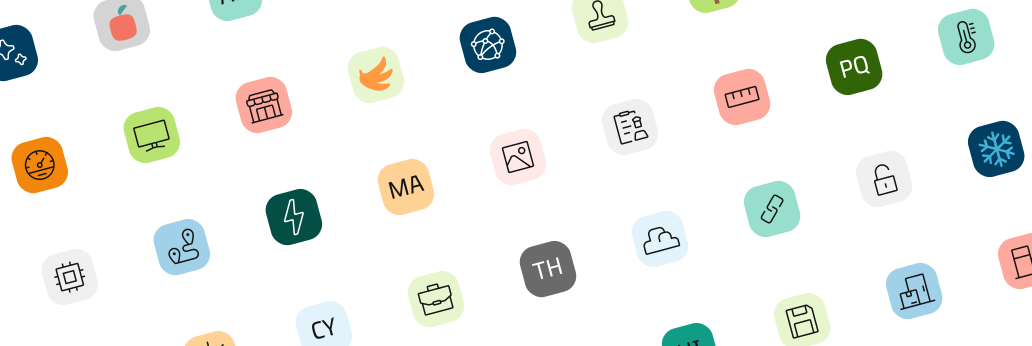
An internal app icon is the small, square mark that represents your tool in lists and app stores, such as those in Microsoft Teams and Figma. It works like a profile picture and is often the first thing people see.
Figma template
We’ve made a Figma template to make it easy to create your own icon. It includes the correct sizes for the Microsoft Teams store and Figma, plus scaled versions up to 6x.
Duplicate the template, choose your background colour, and replace the icon, text or illustration. Everything else is already set up for you. To keep your icon consistent, don’t change the frame size, layer structure or colour setup.
Select the frame, click Export in the right-hand panel, and you’re done.
Colours
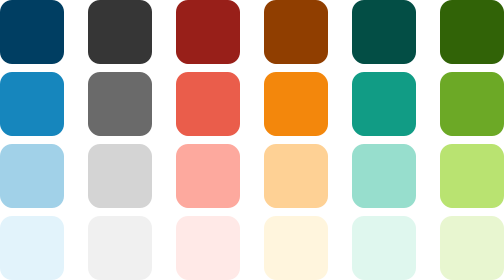
Six colours from our brand colour palette are available for the symbol background: blue, grey, red, orange, teal and green. Each will have four shades, giving you 24 colours to choose from.
Maersk Blue cannot be used. These symbols usually sit on a rounded or circular shape, and when using Maersk Blue the result could read as the Maersk logo with a different mark inside it.
Options for the symbol
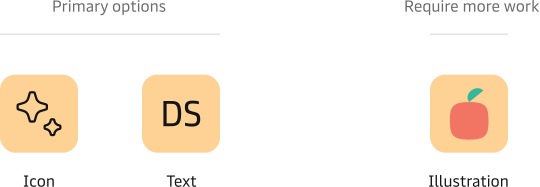
For the symbol itself you have three options. The first two are the primary ones:
- Icon: Choose any icon from the MDS icon library. With 200+ icons to pick from, it should be possible to find a suitable match.
- Text: Use two characters as a short version of your agent name, for example “DS” for Design System.
- Illustration: The third option, and the one that requires the most work. Use an illustration in the Maersk illustration style, we support only a small set of illustrations, so in most - cases you’ll need to create your own and add it to our Figma template file.
Icon
Choose any icon from the MDS icon library. Pick one that relates to your agent, but try to avoid icons that already carry a meaning in the UI, such as a gear, a warning triangle or a bell.
The icons are built into our Figma template, so changing the default icon is easy. The icon is scaled correctly and its colour is set automatically to keep sufficient contrast against the background you choose.
Don’t modify, recolour or rotate the icon.

Text
The second option is a short text of two uppercase characters set in Maersk Headline. Try to use the initials of your agent name, for example “DS” for Design System. For names of three or more words, use the two most distinctive words. Numbers are allowed.
If you use our Figma template, the font size is already set and the colour adjusts automatically to the background you choose.

Illustration
The third option is to use an illustration. This is the option that requires the most effort from you, we only have a small set of ready-made illustrations, so in most cases you’ll need to bring your own elements and add them to the Figma template. Illustrations can be downloaded from Brand Central. If you create your own, they have to follow the illustration style defined there.
The same background colours apply as for icons and text. Unlike those options, the illustration colour isn’t set automatically, so check that your illustration has sufficient contrast against the background you choose.