Search, filter and sort
Best practices
- Group and order filters in a meaningful way for the user.
- Provide clear and concise filter labels and options that make sense to the user.
- When working with large number of filters, display and prioritise the most used and essential ones and hide the rest behind a menu or panel.
- Allow users to select multiple filters simultaneously.
- Use live filtering when it takes 1 second or less to deliver the result.
- Use batch filtering if it usually takes more than 1-2 seconds to deliver the result.
- Show clearly which filters that have been applied by highlighting them both in their original placement, as well as in the “applied filters section”.
- Provide default filters to save users time and effort. Base default values on common user preferences or search patterns in your product.
- The user should be able to clear all applied filters from the “applied filters section”.
- Make sure that keyboard navigation and tab sequence works as intended and according to user expectations.
Exposed or hidden filters
If the product has a lot of filters, then it is a good idea to consider if some of these filters could be hidden behind a menu. There are basically 3 main approaches:
- All filters are exposed on the page per default.
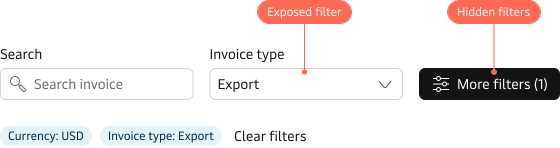
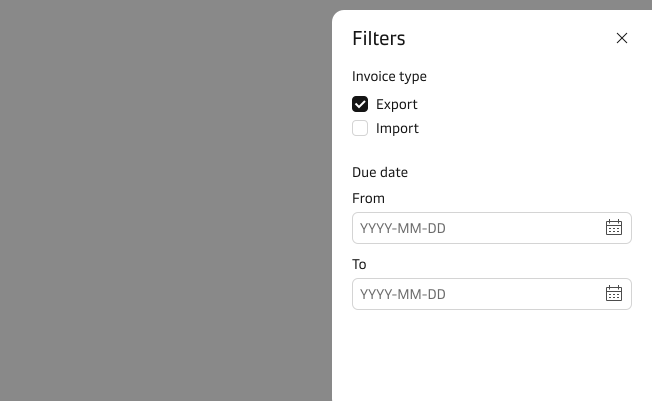
- Only the most used and primary filters are exposed, the rest is hidden behind a menu.
- All filters are hidden behind a menu.
The last option is rare since normally filter options are essential for the user. Like any other functionality, it is always a good idea to find out how important each filter is.
If several filters are rarely used, then it might be a good idea to hide them behind a menu and thereby create a simpler UI, that makes it faster for the user to make the right decision.
Live or batch filtering
There are two main ways of applying the user’s selection of filters to the content:
- Live filtering: we apply the filters to the content at the same time as they are being selected.
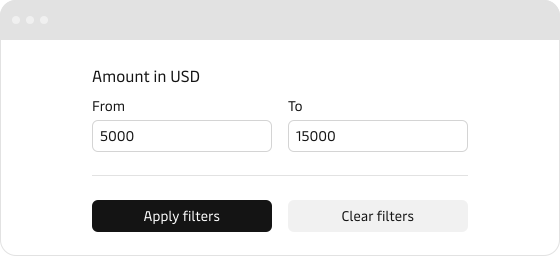
- Batch filtering: we apply the filters when the user clicks the action “apply filters”.
Whether we choose to use live or batch filtering depends mainly on how fast we can display the result to the user.
If we expect to be able to deliver the result less than 1 second after each filter has been selected, then we should use live filtering.
If we expect, that it will take longer than 1-2 seconds to display the result, then we should use batch filtering.
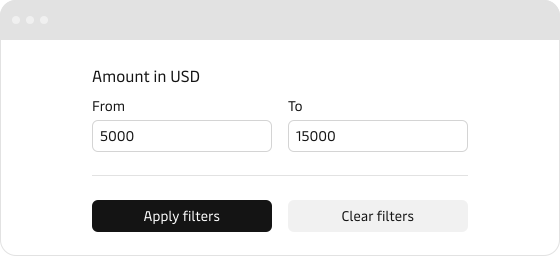
For mobile, it makes sense to implement batch filtering, since page loads often take longer than 1 second, which can make interactive filters painful.
For example, it can be frustrating for the user if she has to wait for 3 page loads to add 3 filters to a product page.
Applied filters
It is important that we clearly show which filters that have been applied to the content. Research shows, that it is best to show the applied filter by highlighting them both in their original placement, the filter options, as well as in a separate “applied filters” section.
By highlighting the applied filters in their original placement, we make sure that the user can see which of the filters have already been applied and which has not.

An applied filters section, allow the user to quickly check which filters have been applied and provide a fast way to remove the filters that are not needed.

Clear filters
We should provide the user with the option to clear all the filters that have already been applied and thereby allow the user to reset things back to their default state.