Forms
The design of a form significantly impacts how easily a user can complete a form and how satisfied the user is with the overall experience.
The following is a short guide on what to consider when designing forms for any digital product in Maersk. Whether you are a designer or a developer, these overall guidelines will enable you to create powerful forms, that are highly accessible and fast to fill out.
If you find something in these guidelines that you don’t understand or if you have any suggestions for improvements, then please reach out to us.
Only ask what is necessary.
Try to reduce the length of a form by only asking for what is necessary for a user to perform the needed action, e.g. creating a customer account or placing a booking.
Be aware that the longer the form is, the more difficult it becomes for the user to fill out, so keep forms short.
Only add a question to a form if you know:
- That you need the information to deliver the service.
- Why you need the information.
- What you will do with the information.
- Which users need to give you the information.
- How you will check the information is accurate.
- How to keep the information up to date and secure.
Input labels
When writing input labels, only use natural language. Make it as easy as possible for the user to understand what is being asked of them. Maintain consistent capitalisation throughout your form.
Optional and required fields
As a golden rule, you should only mark optional fields, because in most cases the majority of fields will be required.
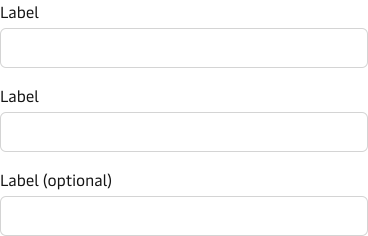
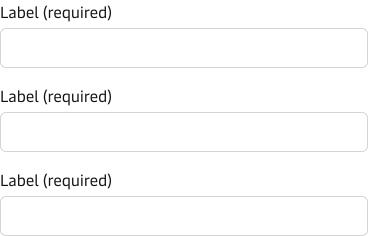
Best practice:
- Place the indicator on the same line as the label: e.g. phone number (optional)
- If all fields are required, do not use any indicator. Do not mark all required.
- Only mark required fields if a form contains a lot of fields where only a few are required.
- Always challenge if the optional fields are necessary. If not, remove them.
Clear path to completion
One of the basic form design principles is to achieve a “clear path to completion”. A clear path to completion ensures that the structure of a form is such that makes it easy for the user to scan a form and to understand where it starts, what it includes and where it ends.
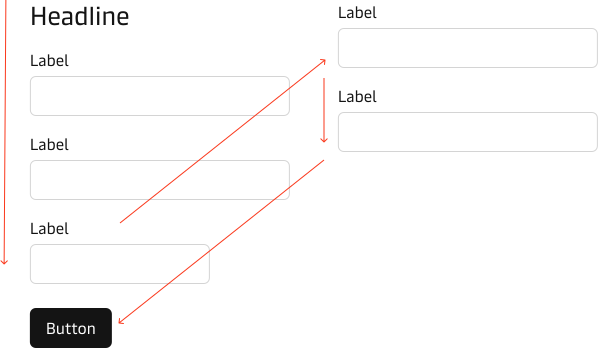
A clear path to completion can be achieved by structuring the form in a way to create a clear scan line. If the scan line is scattered, the user will have difficulty getting an overview of the form and will have to invest more time in understanding the purpose and what is required from them.
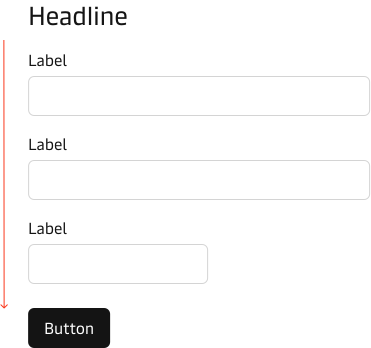
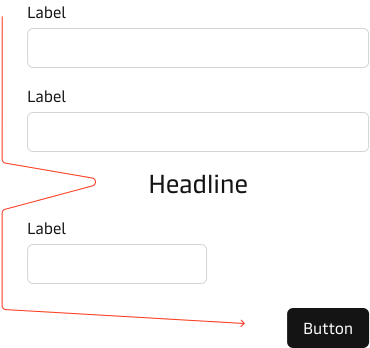
Scattered scan lines demand more eye fixations which in turn will increase the time for a user to fixate their eye on the right area of the form.
We recommend that you always use a 1-column layout for your forms. A 1-column layout supports the goal of creating a clear path to completion and is easier and faster for users to fill out. Below is an example of a 2-column form and the problems with these forms.
Best practice
- Make sure to illuminate a clear path to completion with a clear scan line.
- For payment and registration flows try to remove distractions and links that might lead to the user bouncing.
Tabbing
Many users use the Tab key to navigate and fill out forms. It is essential to support this user interaction pattern.
When testing the “tabbing experience”, it is important that it follows the intended path and does not “jump” around the form. The tab sequence can be adjusted using the “tabindex” attribute in HTML.
Grouping
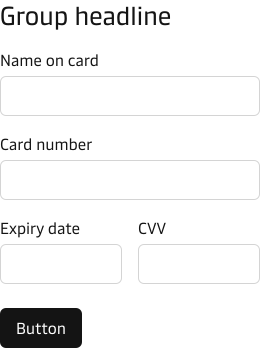
Often it makes sense to organise the form elements into meaningful groups and in some cases to distribute groups across multiple pages. This is especially true if a form is long with very distinct sections. Reduce visual artefacts used to communicate meaningful relationships between elements, e.g. separator lines etc.
Use headlines and the success spacing to signal that a new section is starting.
- Start each form with the main headline - be descriptive.
- Add “group headlines” to describe a group of form controls and inputs.
- Place form actions at the bottom of the page. Read the section “Actions (button)” for more info on placement.
Use fieldset and legend to group form elements.
The Checkbox Group, Radio Group and Switch Group components provide a legend property to a group a series of options.
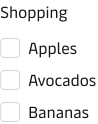
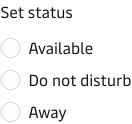
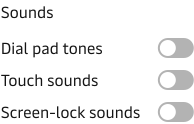
In some cases, it makes sense to place form fields next to each other to form common formats e.g. address and credit card format. Also, use the <fieldset> tag to group form inputs that are related and give the group a headline using the <legend>.
Spacing
Use the design system’s “4px spacing” recommendation to ensure that elements on a form are spaced with some visual consistency and the space between elements is divisible by four e.g. 4px, 8px, 16px, 20px etc.
The exact spacing required is variable and related to a number of factors such as the length and complexity of the form.
Label positioning
As default, the form input components have top-positioned labels, but you can change the position of the labels to be left-positioned as well. We recommend that you use top-positioned labels wherever possible.
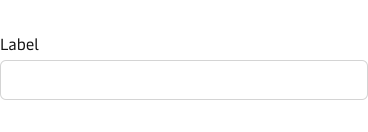
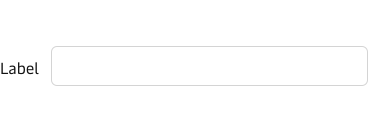
Reasons why top-positioned labels work best:
- Easier for the user to understand each input by reducing eye fixations to a single eye movement.
- Faster completion times.
- Works well on different screen sizes and especially on smartphone
- Works well with different content lengths e.g. long labels
- Works best on field zoom (On field zoom, left-positioned labels might not be readable).
Field width
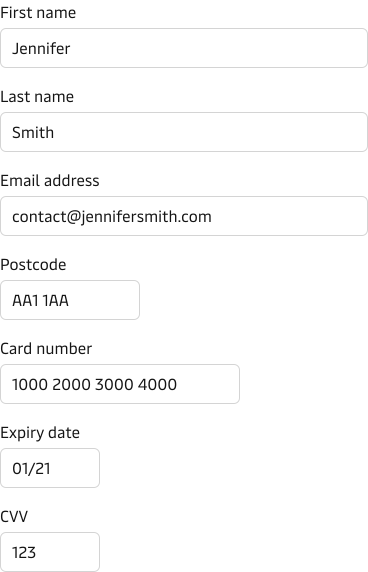
Always adjust the field width to match the expected value.
The width of a field provides valuable affordance by indicating the length and sometimes the format of a proper answer.
If a field is short, then the user will try to find an answer that fits that width. If a field’s width does not match the length of the expected value, then the user will be confused about the answer and may try to adjust their response to fit the width of the field.
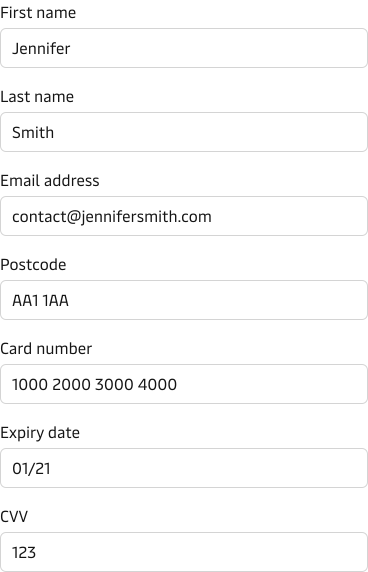
Best practice
- Use the width of form fields to indicate the “format” of a proper answer.
- Make sure that the form fields are long enough.
- Do not use the same width for all form fields.
- The width of different fields should make sense e.g. email is longer than first name.
Actions (buttons)
In most cases, there are two types of form actions - primary and secondary actions. Primary actions are the actions that are used to move forward or complete the form, e.g. “Next” and “Submit”.
Secondary actions, e.g. “Back” and “Cancel” are less important and should be less visually prominent than primary actions.
It is recommended to use the “Filled” button variants for primary actions and “Outlined” or “Plain” button variants for secondary actions depending on the importance of the secondary action. If less important or not recommended action, then use the “Plain” button variants.
You might also need a tertiary action. In such cases use the following button combination to ensure a clear hierarchy:
- Primary action: Use the “Filled” button variants
- Secondary action: Use the “Outlined” button variants
- Tertiary: Use the “Plain” button variants
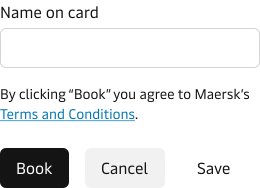
We also recommend that you read our buttons guidelines for more in-depth information on button variants, hierarchy and combinations.
Placement
Align the primary action button to the left, so that it is aligned with the rest of the form. Tabbing through the form will lead the user to the primary action first, which creates a linear and clear path to completion.
Place the secondary action buttons adjacent and to the right of the primary action button.
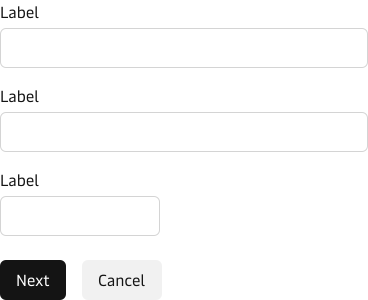
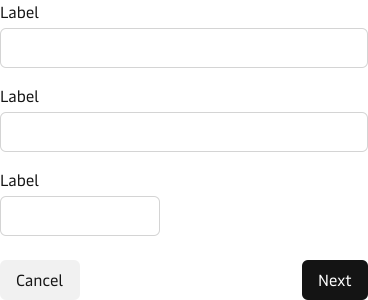
Best practice:
- Ensure clear visual distinction between primary, secondary and tertiary actions.
- Align the primary action to the left so that it aligns with the rest of the form.
- Place the secondary action next to the primary on the right side.
- If you have a tertiary action, then place it next to the secondary on the right side.
- Do not use call-to-action labels that are ambiguous or open to interpretation - be explicit.
- Never hide or disable the primary action.
- Communicate clearly when a form is being processed to avoid duplicate submissions.
Legal requirements
Often a form will include legal requirements that a user must agree to before she/he can proceed.
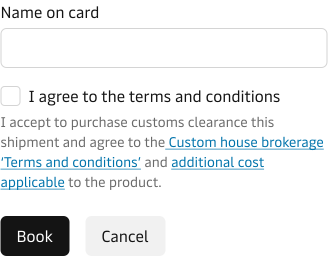
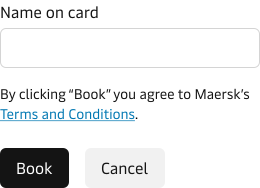
Depending on the legal requirements in question, it might be possible to combine the primary action with agreeing to the legal conditions and thereby reducing the choices the user has to make.
Please do consult with the legal department whether or not it is possible to streamline the legal requirements by combining the primary action with agreeing to the legal conditions - or if we do in fact need an explicit opt-in from the user.
Validation - error & success
Please read our error messages guidelines when providing feedback to users on invalid entries.
Success messages
Always inform the user when they have submitted the form successfully and accomplished their task by displaying a success message.
Success messages should be displayed prominently at the top of the page.
Best practice:
- Place success messages on top of the page.
- Clearly describe that the form has been completed. successfully.
- Never create a dead-end success page, but provide clear and helpful next steps.
Vanity field variant
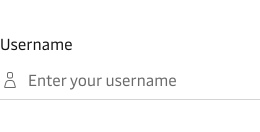
The design system supports a “vanity” style variant for many input / select based components. This variant removes the box surrounding the input/select component and substitues it with an underline.
This variant should only be used for very short forms e.g. two inputs in our action card. For longer forms please use the default variant.
Help
Where possible, provide help in the context of the question asked, for example:
- When asked for unfamiliar data e.g. using industry-specific terms.
- When the user may question why particular information is requested.
- When the user does not know where to find information that is being requested in the form.
There are different ways to provide help:
- Hint text: adding additional help text underneath the label to provide more context.
- Input mask: when the required input is in a specific and standardised format.
- Automatic inline exposure: when in focus the hint text is displayed.
- User-activated inline exposure: e.g. the user can activate help by clicking a question mark icon.
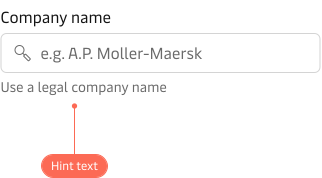
In most cases adding a hint text will be sufficient.
Best practice:
- Minimise the amount of help and tips required to fill out a form.
- Avoid making the form more complex by adding help. Always try to provide help in the context
- When providing help, always ensure it is within context.
Selection dependent inputs
Sometimes an initial data input requires or enables additional inputs. For example, more options become available or further clarification is required based on the initial response given by the user.
These additional inputs are called “Selection dependent inputs”.
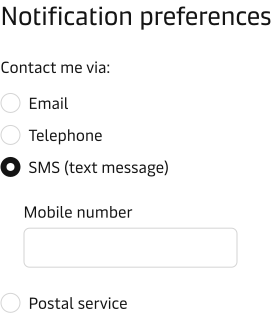
Radio buttons
If you only have 2-3 selection-dependent inputs for each initial option, then use radio buttons.
Select boxes / dropdowns
If you have more than 3 selection-dependent inputs for each initial option, then use a dropdown/select and group the selection dependent inputs visually, so it is clear that they belong to the initial section made in the dropdown.
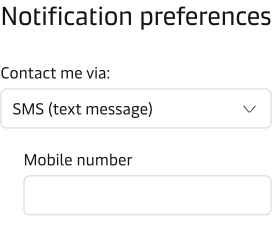
Best practice:
- Maintain a clear relationship between initial selection and the selection dependent inputs.
- Minimise “jumping” of the page when exposing the selection-dependent inputs, since this can create confusion - especially on mobile.