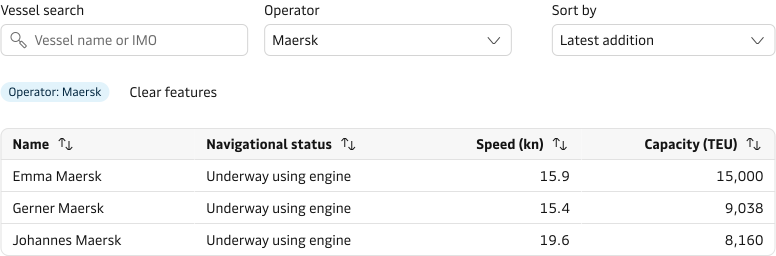
Search, filter and sort
Best practices
- Place sorting options in close proximity to the content that is sorted.
- Keep sorting options limited to the most relevant to avoid overwhelming the user.
- Sort information in logical order for the context to support the user journey.
e.g. Earliest arrival, Lowest emissions, Price etc. - Indicate visually when and how data is sorted. e.g. A headline above list results “Results by lowest emissions first”.
- Allow change of the sorting direction from ascending to descending, or vice versa. e.g. in tables use the arrow-up (ascending) and arrow-down (descending) icons for sorting columns.
Data table sorting
When displaying information in a data table it is a common pattern to sort content per column to find the information faster.
Provide default sorting based on the context, content and how the users want to use the table. Display clearly which column is sorted and indicate how. Table component uses arrow icons for sorting. Keep table cell content to one type if possible to allow for specific type of sorting e.g. numerical ordering, alphabetical, alpha-numerical or chronological. Search and Filter patterns to help people narrow down the information even more.

List item sorting
When displaying simple or complex lists (e.g. cards with information) a single sort control can help people to arrange the results based on different logical criteria. In these cases the sorting option allows people to surface to the “top” the information that they seek.
- Aim to provide sorting options for long lists of information.
- Provide a default sorting option that is defined by the context and content.
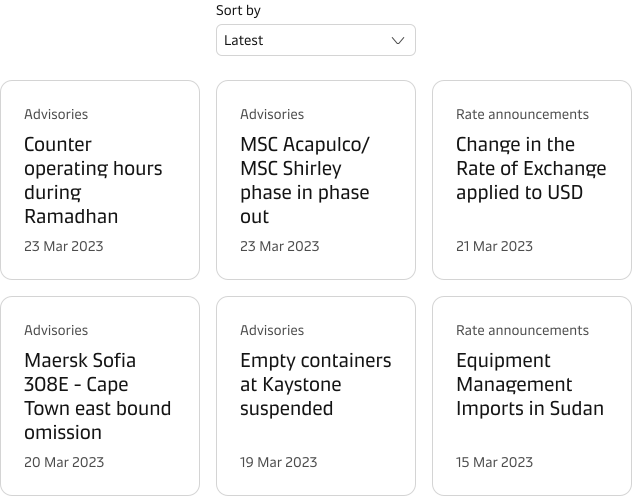
Mixing Sort and Filter patterns
In some cases, it makes sense to combine filter and sorting options to provide the user with a more advanced way of finding information. It could be because it makes logical sense for the user to make these choices together or simply because you needs to optimise the screen space.