Search, filter and sort
Best practices
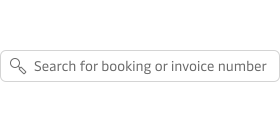
- Use either the text input or the typeahead component combined with the magnifying glass icon to display the search field in the interface.
- Use concise language in label and placeholder text to describe what can be searched for e.g. “Search for container ID”.
- Think about the expected length of search queries when deciding on the width of the search field.
- If the search can contain multiple values, then make sure it is clearly explained how e.g. “add multiple values separated by a comma”. (typeahead)
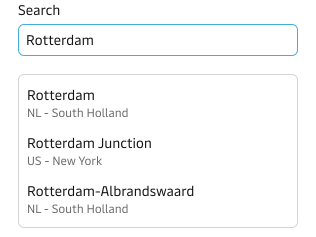
- Use auto-suggestions when possible to offer users a list of possible search queries as they start typing.
- Keep the search query in the input field after the search has been submitted to allow for adjustments.
- If result cannot be displayed within 1-2 seconds then use a loading indicator to provide the appropriate feedback to people.
- If the search query returns no results, provide feedback to the user.
- Please check how to handle no result cases.
- Incorporate synonyms and variations of search terms to make sure that the search engine captures all relevant results.
Keyword search
The basic search experience that people expect by default. People can enter keywords related to what they are looking for, and it is expected the system to return results that match those keywords. It is the minimum expected search experience.
Unfortunately, it is prone to incorrect user input that can lead to no result state. The cause can be due to multiple factors from lack of clear instructions to simply missing the information in the database.
It is important to manage users expectations of what can be searched and be extremely clear on what input and formatting is accepted. Use placeholders, labels, hint text and tooltips to communicate this requirements.
It is strongly recommended to apply the more advanced concepts like autocomplete and faceted search to support the search journey of the users.
Autocomplete, Suggestions and Typeahead search
These three patterns are enhancing the search experience, frequently working in combination to assist people when they are typing in text and search fields.
- Autocomplete: is a feature that fills in or suggests possible completion for the rest of a word or phrase that a user has typed. It does not suggest a list of options for the user to choose from.
- Suggestions: typically contain items that match the characters entered by the user, and may update dynamically as the user continues to type. It could support synonyms and variations of the typed keyword to assist even finding related information.
- Typeahead: is a pattern that utilises a suggestion list as a user types into a search field. It is often used to help users find and select from a large set of items, such as product names, locations, or people.
Faceted search
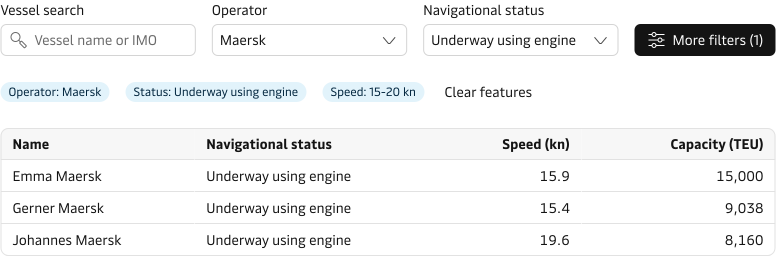
This is a combination of Search and Filtering patterns. It allows people to refine their query by combining a search field with one or more filters e.g. price range, categories, date range etc.
It is a widely used pattern that allows for a very precise search experience that can narrow the information to what the user needs. Please read about filter patterns if you want to apply Faceted search to your product.
When a search query returns no results
In some cases, a search query does not return any results. Please see how to handle no result cases.