Currency and pricing
Displaying currencies
The following section explains what you need to consider when displaying currencies in digital products.
Use ISO currency codes
There are 180 globally recognized currencies, each with a standardized three-letter ISO currency code e.g. USD, AUD, HKD. The ISO currency codes are commonly used in financial documents and reports e.g. the USD code is used in Maersk’s Financial Reports.
The Maersk Design System recommends using ISO currency codes in digital products to ensure clarity and eliminate ambiguity.
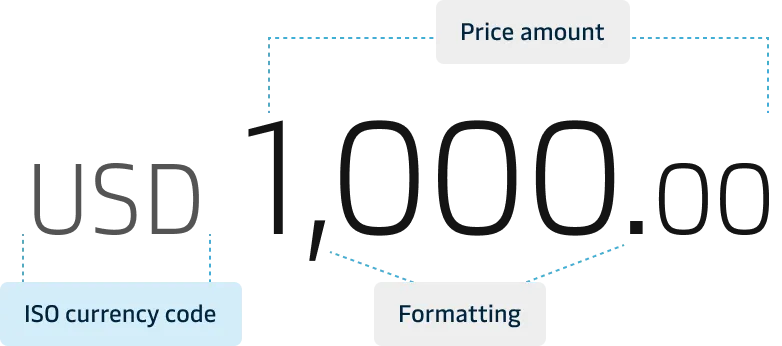
As a general rule, Maersk provides shipping prices in the USD currency code and displays local charges in local currency codes.
Add space between the ISO code and the amount
For readability make sure to add space between the currency code and the amount.


Avoid using currency symbols
Not all currencies have currency symbols (e.g., Switzerland’s CHF), and multiple currencies share the same symbol, which can confuse some users. For instance, more than 15 currencies use the ”$"" symbol.
To avoid ambiguity, the Maersk Design System recommends avoiding currency symbols altogether in digital products.


ISO code placement
The ISO currency code can be placed before or after the amount. Where to place the currency code varies depending on the context and location.
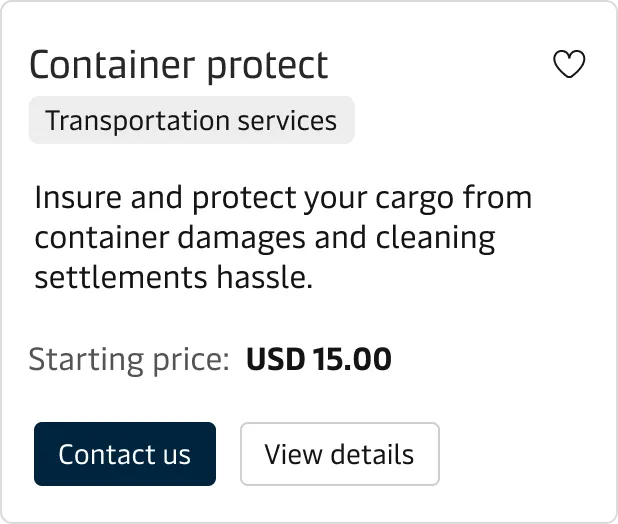
ISO code before the amount
It is an internationally accepted standard that the ISO code is placed before the amount e.g., USD 100.00, EUR 50, so for most locations and contexts, that should be the go-to practice.
ISO code after the amount
Placing the ISO currency code after the amount can be appropriate in some contexts, particularly in non-English speaking regions and when there are different linguistic norms. For example, you might see “100 EUR” in Germany and France.
Delays in pickup time caused by the supplier will add additional charges of 15,00 EUR per hour.
Consistency
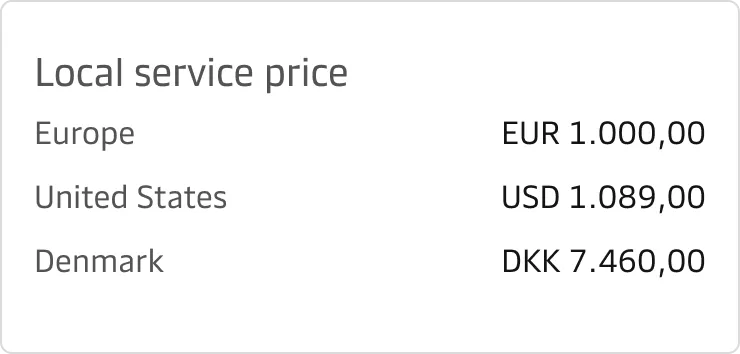
Whether you place the currency code before or after the amount, make sure you do it consistently across the product to avoid confusion and increased cognitive load for the user. If, for example, a product’s price needs to be shown in several currencies for different regions, display the currency code in front of the amount and format the amount based on the localisation.
Currency Conversion
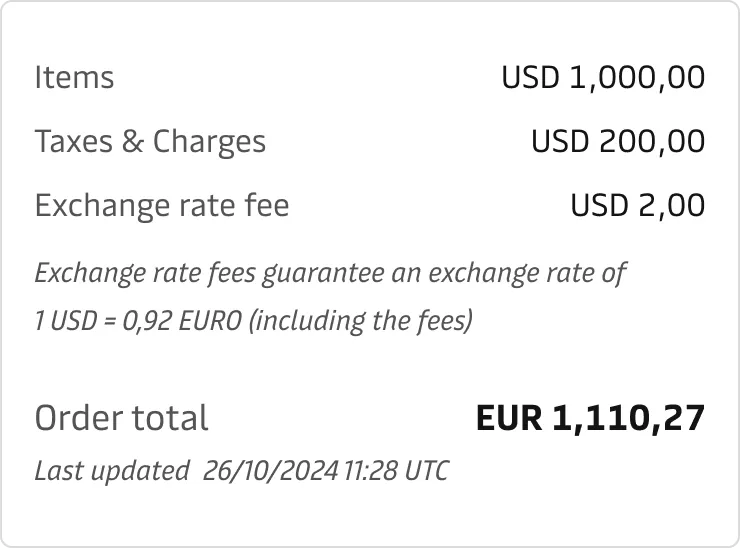
Currency conversation is the process of converting one currency into another to determine the equivalent value. It is recommended to use real-time exchange rate APIs to dynamically update prices to make sure they reflect the current market conditions.
Currency conversion recommendations
Follow these recommendations, if you need to display currency exchange in your product:
- Do not handle any conversion in the Front End.
- Use real-time exchange rates and provide the source and time of the update.
- Inform users when rates were last updated to maintain transparency.
- Clearly state any conversion fees applicable when switching between currencies.
- Include fallback mechanisms like using the last known rate or a default rate if the exchange rate API fails.
- Notify users of any issues with conversion or pricing updates to build trust.
- Consider showing prices in both local and international currencies (e.g., USD) to help users better understand costs.
Displaying prices
The following section explains what you need to consider when displaying prices in digital products.
Price formatting
Clear and context-appropriate price formatting enhances user understanding and trust.
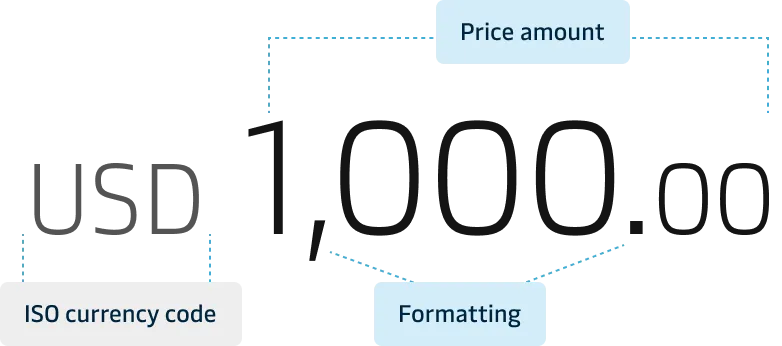
Decimals
Always display full decimal values when exact amounts are required e.g. prices in invoices. This ensures users have full transparency and clear expectations of the final price. The format of the decimal separator can vary depending on location. Please read more about applying international standards under our Number Localisation Guidelines.


For external reporting, use US/UK formatting (period as a decimal separator), even for currencies like EUR.
Hiding decimals values
Hiding the decimal values can sometimes be appropriate e.g. in a promotional context or for currencies with low denomination values like the Japanese yen, where decimals are rarely used. This approach can simplify the presentation and improve readability.
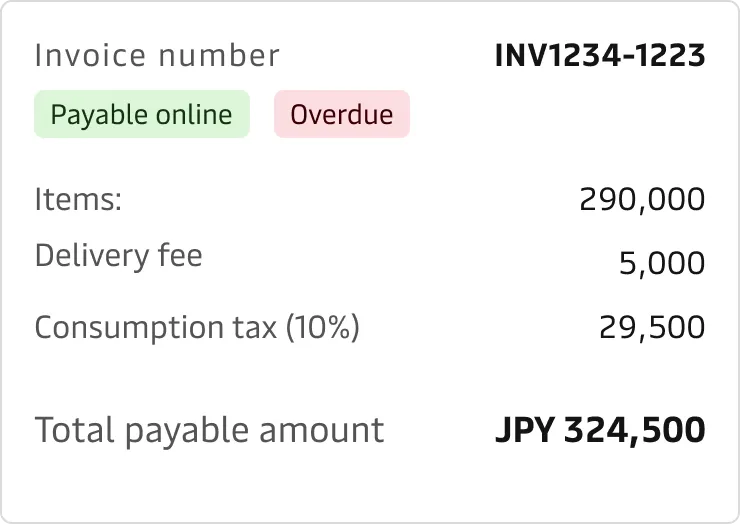
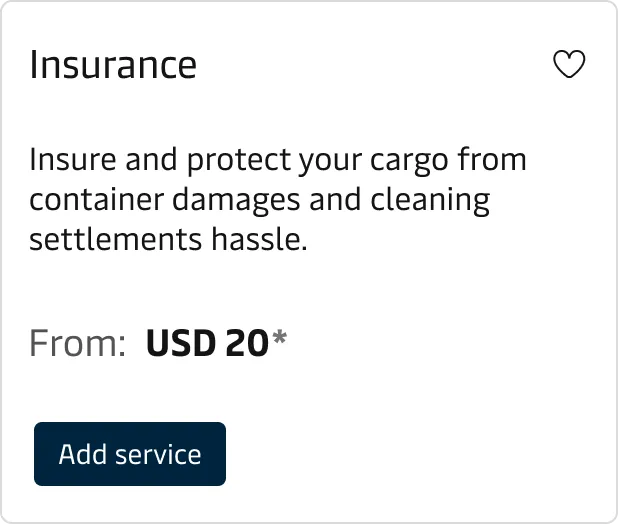
High Denomination Amounts
High-denomination prices can be challenging to display due to their length and the cognitive load they impose. Use abbreviations where appropriate e.g., “k” for thousands, “m” for millions and “bn” for billions. For example, USD 2,100,000,000 can be displayed as USD 2.1bn without spacing between the decimal and abbreviation.


Price styling
Styling can significantly affect how prices are displayed and understood. The following styling best practices will help design effective pricing:
- Prioritise the most critical pricing information (e.g., total cost) by making it more prominent.
- Use font weight (bold), size and colour to emphasise important details.
- Group related pricing elements together to provide context for the viewer. (e.g., base price, additional charges and taxes)
- Support comparison of prices with close placement and consistent formatting.
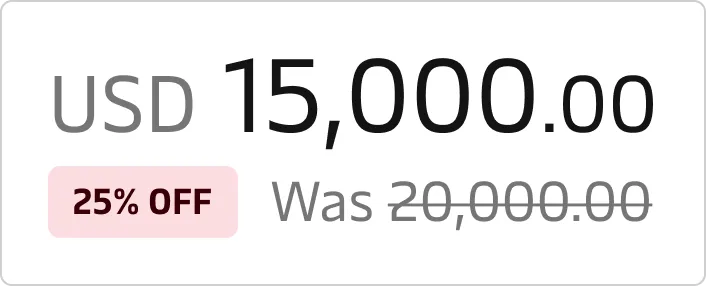
- When showing discounts, the new and old prices should be clearly stated and accessible.
Price range
Displaying pricing ranges accurately is crucial for transparency and user trust. This section outlines best practices for presenting price ranges and considerations to keep in mind.
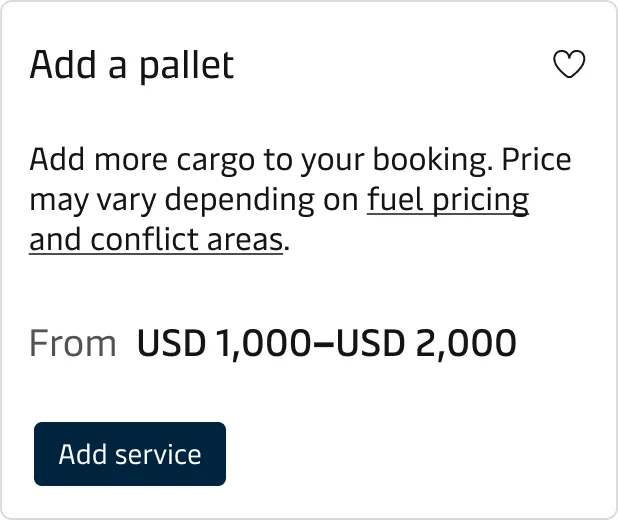
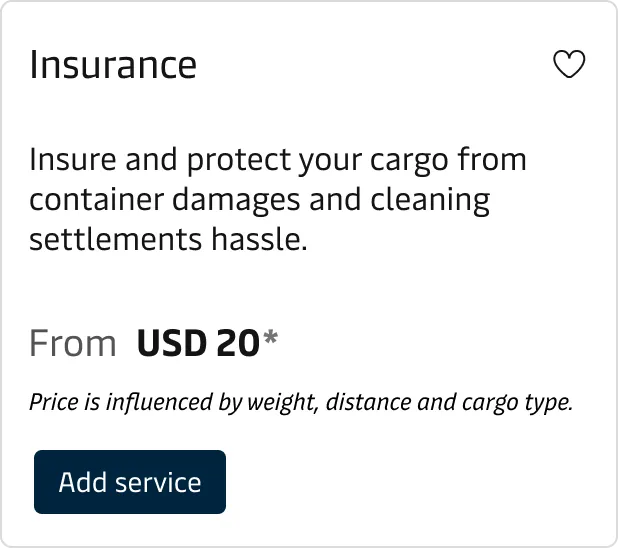
- Ensure the pricing range is easy to read and understand.
- Provide contextual information influencing the price range (e.g., weight, distance, delivery speed).
- If prices fluctuate based on real-time data (e.g., fuel costs, demand), ensure the pricing range updates dynamically.
- Use a tooltip or notification to explain why prices might vary.
- Include disclaimers if necessary to clarify any legal considerations.
Price comparison
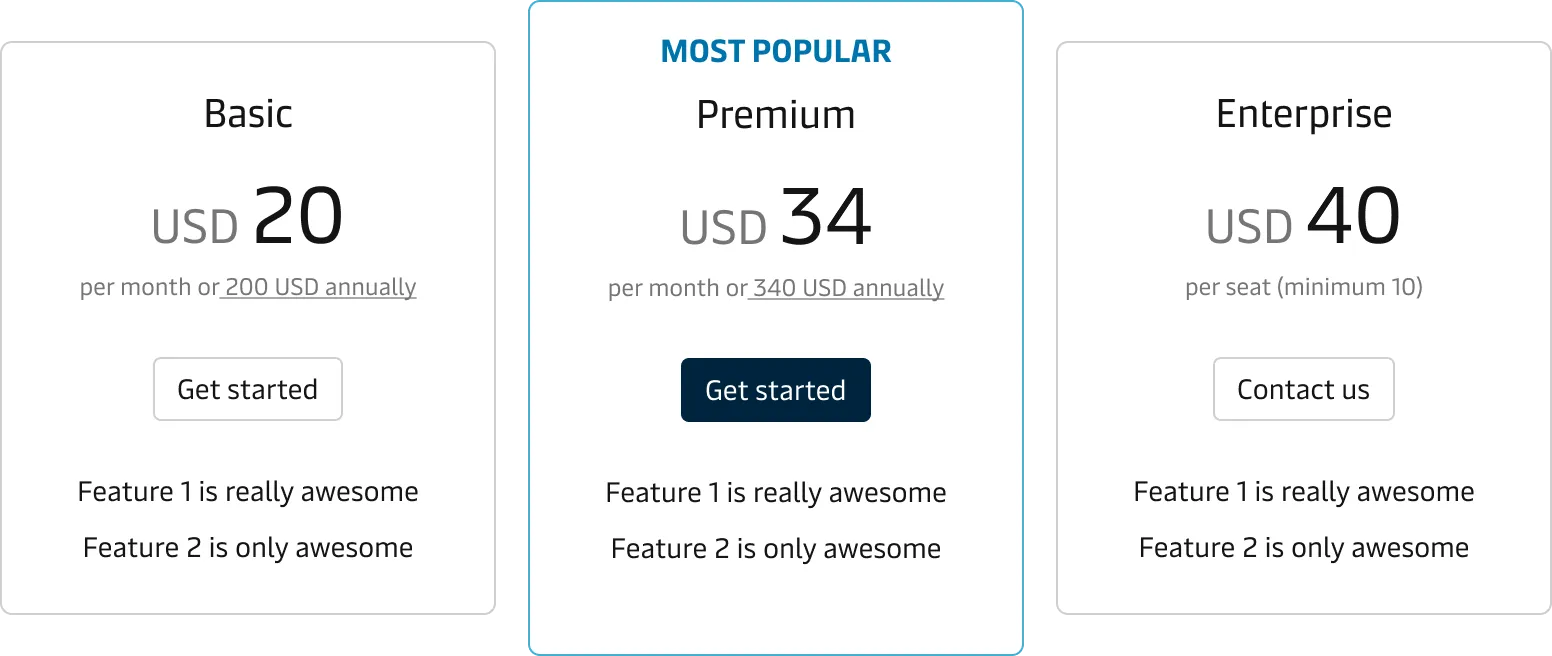
A good price comparison is easy to understand and helps the user make informed decisions. To ensure an effective price comparison use the following guidelines:
- Ensure all prices are formatted and styled consistently.
- Indicate if the time factor, such as monthly or yearly pricing, impacts pricing.
- Highlight the best value for a price if it makes sense for the context.
- Place all prices that need to be compared close.
- In data tables, it is best to right-align and use a monospaced font to help compare the amounts.
Use tooltips to provide additional context when users interact with pricing elements.
Accessibility
Ensure pricing information is presented in a readable format for all users, including those with visual impairments. Additionally, make sure that the screen reader can access all the information and that it reads it in the intended way.
Use ARIA-labels
Use clear and concise ARIA labels like “Original price” and “Discount price” to provide additional context for screen readers.
For example, when using strikethrough text to style the old price, ensure accessibility by including a proper ARIA label. This way we make sure that screen readers can read it.
Localisation
- Adapt the currency format based on the user’s language and region settings. This includes adjusting the currency code’s placement and the numbers’ format. Please check our Number Localisation Guidelines.
- Use geolocation to automatically detect and display prices in the user’s local currency, with an option to change if needed.
- Whenever possible, allow users to choose their preferred currency format in their profile settings. This can enhance user experience by catering to individual preferences.
It is a good idea to seek guidance from the Maersk Competition Law & Policy team in cases where the product is used set or change prices and surcharges.