Input
When to use
- The user needs to enter short freeform text such as a name, address, or search query.
- The user needs to enter a value tied to a unit or currency, where a prefix or suffix clarifies the expected format, for example USD or kg.
- The user needs to enter a value in a strict, standardised format such as a credit card or phone number, where an input mask reduces errors.
When not to use
- If the user needs to enter multiple lines of text, use Textarea instead.
- If the user must pick from a predefined list of options, use Select instead.
- If the user must pick several options from a predefined list, use Multi-select instead.
- If the user increments or decrements a numeric value in small steps, use Number Stepper instead.
- If the user is entering a date, use Input Date instead.
- If the user is entering a time, use Input Time instead.
- If the field needs an adjacent button or select to complete an action, such as a search field with a submit button or a value paired with a unit selector, use Input Group instead.
- If the user types freely but benefits from suggested matches against a known dataset, such as a port or country lookup, use Typeahead instead.
Usage guidance
How to choose the field type, lay out the label and width, show the expected format, add affordances, and pick the right fit for the context.
Match the field to the data
Choose the field type that matches the value people will enter. It sets the keyboard, the browser’s validation, and how the value is handled, so people work faster and slip up less often.
| Type | Mobile keyboard | When to use |
|---|---|---|
| Text | Standard | Default for short freeform values such as names or references. |
| Telephone | Numeric dialpad | Phone numbers, where a dialpad speeds entry. |
| URL | URL-optimised (/ and .) | Web addresses. |
| Email-optimised (@) | Email addresses. | |
| Number | Numeric | Quantities people might count or calculate. |
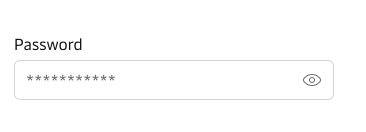
| Password | Obscured | Passwords and keys, content with characters hidden as they are entered. |
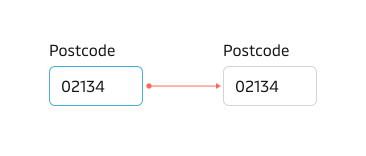
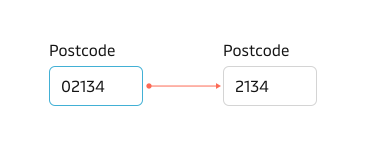
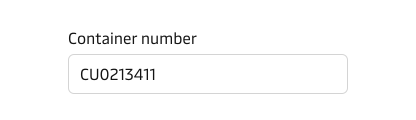
Reserve the number type for true quantities the user might count or calculate, such as amounts, weights, or item counts. Many values look numeric but are really identifiers, for example postcodes, HS codes, container numbers, or reference numbers. Treat those as text so the field keeps every digit the user enters, preserves leading zeros, and never changes the value by accident while it is focused.
Put the label above the field
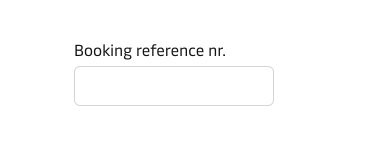
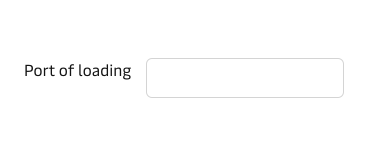
Use the default top label. A top label is easy to scan down a form and leaves room for the longest translations. Use a left-positioned label only for exceptions, such as a short, scannable row where vertical space is tight.
For the broader reasoning behind label placement, see the form guidelines.
Size the field to its value
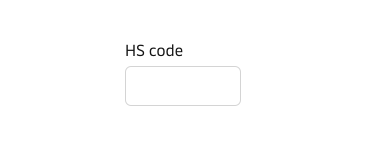
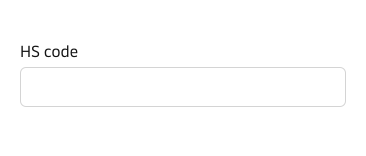
Let the width of the field hint at how long the answer should be: a short field for a postcode, a wider field for a full address. A field sized to its content reassures people they have understood the question.
Mark only the optional fields
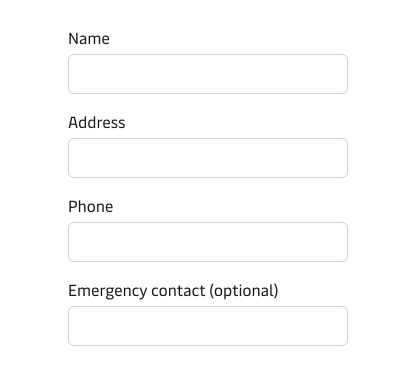
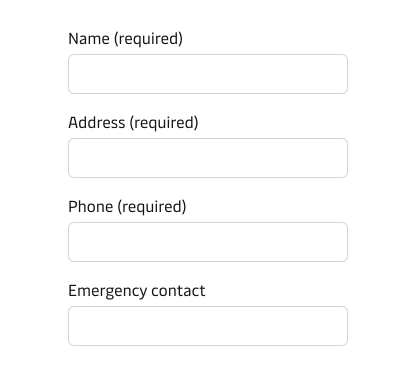
The MDS recommends to mark only the optional fields, because in most forms the majority of fields are required. If every field is required, use no indicator at all. Only mark the required fields in the rare case of a form with many fields where just a few are required. Place the indicator on the same line as the label, such as Phone number (optional).
For the full reasoning and examples, see the form guidelines.
Show format help: placeholder, hint, and mask
When people might be unsure what to type, give them the smallest amount of help that removes the doubt: an example placeholder, a one-line hint, or a mask — and no more than one unless each is genuinely needed. A placeholder can show an example, hint text can hold a short instruction in view, and an input mask can enforce a strict format. Lead with a clear label, and reach for these only when the label alone leaves real doubt. For writing guidance, see Content guidance below.
Placeholder text is optional, and most fields do not need one. Placeholder text disappears as soon as the user starts typing, so anything people still need at that point must live in the label or hint text instead.
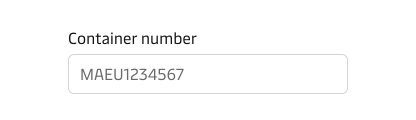
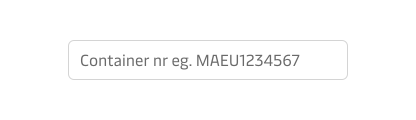
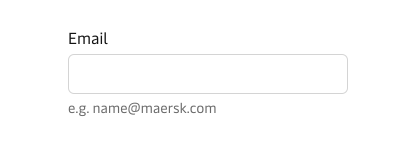
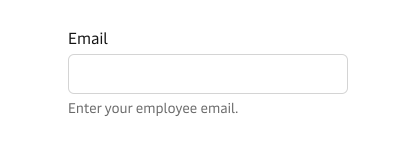
Use hint text when an instruction must stay visible while people type, such as a format or a constraint. Keep it to a single concise line, and write it as guidance rather than a description of the field’s purpose, which the label already covers. Add hint text only when the label and placeholder together still leave doubt about the format or a constraint.
Use an input mask when the value must follow a strict, standardised format and the mask genuinely helps people enter it correctly. A mask guides entry segment by segment so the structure is right as people type, which is more reliable than explaining the format in words.
See the Input mask guidelines for when to use a mask and when to avoid it.
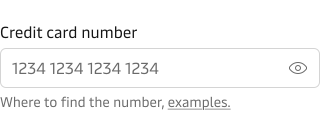
Add icons and affixes only when they help
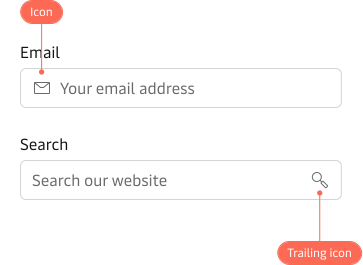
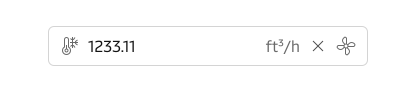
Only use leading and trailing icons if they clarify the expected input or support a directly related action.
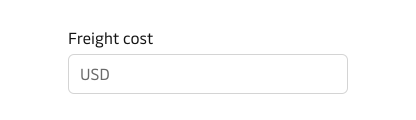
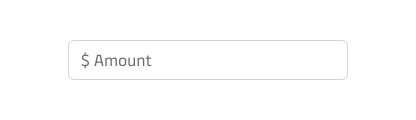
Reserve prefixes and suffixes for symbols, standard abbreviations, and units of measurement, for example USD, kg, m², m³, ft³/h, or °C. In a form, keep the unit in the prefix or suffix and let people type only the value, so the unit stays in view while they enter the number.
A prefix or suffix is visual only: screen readers do not announce it together with the field. When the unit or currency is essential to understanding the value, also put it in the label or hint text, for example “Gross weight (kg)”, so it reaches everyone.
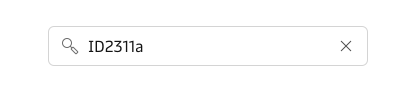
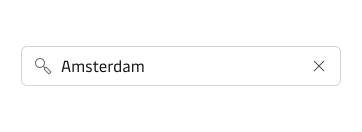
Use a clear button when users need to remove the whole value quickly, especially in search and mobile contexts. Avoid combining a trailing icon or suffix with a clear button, because that makes the field unnecessarily complex.
Choose the right fit
The input component supports three fit sizes: small, medium, and large. Use medium as the default. Switch to small in dense layouts such as data tables or compact filter bars. Use large for touch-focused interfaces where bigger tap targets reduce mis-taps.

| Fit | Use when | Examples |
|---|---|---|
| Small | The layout is dense and surrounding controls are compact | Data tables, filter bars, inline edits. |
| Medium | The default for most contexts, pointer and touch alike | Forms, dialogs, page-level fields. |
| Large | The interface is touch-focused and needs bigger tap targets | Terminal and warehouse screens, and mobile-first entry. |
Match the fit to the controls around it and avoid mixing fits in the same row. For more detail on fit sizes across the design system, see the component fit guidelines.
Use the vanity variant sparingly
Most fields should keep their border so people can see where to type. Use the vanity variant only for fields that should recede into content, such as an inline or embedded edit. Show its border again on focus so the field remains findable when active. Using it as a default makes fields hard to find.
For more on the vanity variant, see the form guidelines.
Make the most of autofill
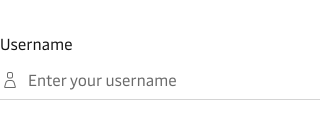
For details people have given before, such as name, email, phone, or address, set the field’s autocomplete purpose so the browser can autofill the saved value in a single tap. Keep it for values with a stable, real-world meaning, and disable autocomplete only when reusing the value would be unsafe or pointless, like a one-time passcode.
Patterns
Common compositions that combine an input with icons, buttons, or behaviour to solve a recurring task.
Search field
A search field is a composition rather than a type. Combine a leading search icon with a clear button so people recognise the field at a glance and can reset it in one action, and show a progress indicator while results load. Place it where people expect to search: in a toolbar, at the top of a results list, or in a filter bar. When search needs its own submit button, build it with Input Group.
Password field
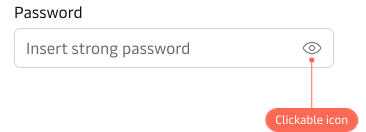
Pair a masked field with a reveal toggle so people can check what they typed before they submit, which cuts down on failed sign-ins. Show the toggle as a trailing eye icon, keep it reachable by keyboard, and start each visit with the value hidden.
Content guidance
- Write labels in sentence case.
- Use terms people already expect. The label should describe what to input, not how to type it.
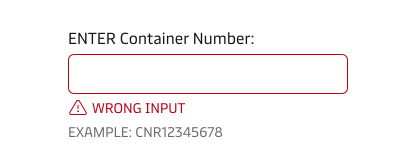
- Do not use imperative verbs such as Enter, Add, or Input in the label.
- Do not add a trailing colon to the label.
- Use hint text when the label alone is not enough context.
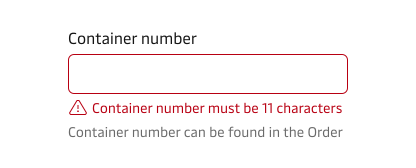
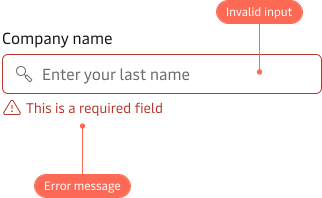
- Write error messages that name the problem and tell the user how to fix it, for example ‘Container number must be 11 characters’ rather than ‘Invalid input’.
Users rely on good and consistent labels when interacting with digital products. See our Label Guidelines for broader writing guidance.
States and feedback
- Default: the field is ready for entry without extra emphasis.
- Hover: a subtle change signals the field is interactive before the user commits to it.
- Focus: a focus ring marks the active field so the user can enter and review values reliably.
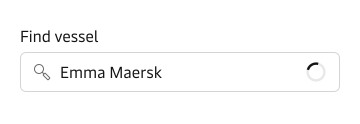
- Loading: a trailing indicator shows the field is busy while a value is validated or fetched.
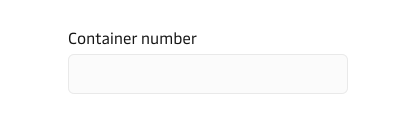
- Disabled: the field is faded so it is clear it cannot be used yet.
- Read-only: the value stays visible while editing is prevented.
- Error: a red treatment and message show what went wrong and how to recover.
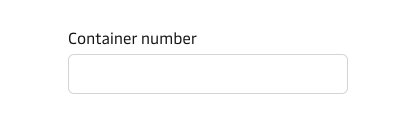
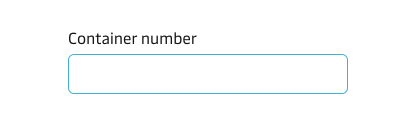
Loading state
Use the loading state when the field is busy, such as while an entered value is validated against a server or a related value is being fetched. Show the loading indicator in the trailing slot and avoid pairing it with a clear button or trailing icon at the same time. Keep the field interactive unless the in-flight operation must block further input.
Disabled vs read-only
Use disabled when the field cannot be used yet and the user may be able to unlock it by changing something else on the page. Use read-only when the value needs to stay visible for reference but should not be edited in this context.
For detailed guidance on when to use each state, see the disabled and read-only states guidelines.
Error state
Validate on blur or on submit, not on every keystroke. Real-time validation while the user is still typing creates premature errors and interrupts the flow.
- On blur: when the field has a known format that can be checked immediately, such as an email or a container number.
- On submit: when the check depends on the full form context or a server response.
For error message writing guidance, see the error messages guidelines.
Accessibility
- Provide a visible label by default. Do not rely on placeholder text as the accessible name (see Show format help above).
- A label may be visually hidden only when the field’s purpose is already clear from its context, such as a search field in a toolbar. Even then the field must keep a programmatic accessible name through an associated label or
aria-label. - Write clear, descriptive labels so screen reader users can identify the field without extra context.
- Identify the field’s purpose for values that collect a person’s known details, so browsers and assistive technologies can recognise and offer to fill them (see Make the most of autofill above).
- Ensure error messages are linked to the input so assistive technologies announce them.
- Prefix and suffix text is visual only and is not announced with the field, so put any essential unit or currency in the label or hint text as well (see Add icons and affixes only when they help above).
- Make clickable trailing icons reachable with Tab and activatable with Enter or Space.
The component already associates the label with the input, links hint and error text through aria-describedby, sets aria-invalid in the error state, and supplies an accessible label for the clear button.
Related components
| Component | Use case |
|---|---|
| Input Date | When the value is a calendar date and the user benefits from a picker |
| Input Time | When the value is a time and formatted segments reduce errors |
| Input Group | When an input needs an adjacent button or select to form a compound action |
| Number Stepper | When the user increments or decrements a value in small, predictable steps |
| Typeahead | When the user types freely but benefits from suggested matches against a known dataset |
| Select | When the user must pick exactly one option from a fixed list |
| Multi-select | When the user must pick one or more options from a fixed list |