Button
When to use
- The user needs to trigger an action that changes data or confirms an outcome, for example, submit, save, delete or confirm.
- The user needs to trigger an action without navigating to a different page.
- The user needs access to related actions within the same task or flow, for example, cancel or reset.
When not to use
- If the interaction navigates to another page or URL, use Link instead.
- If the interaction navigates but should look like a button, use Link Button instead.
- If one trigger needs a primary action plus alternative actions, use Split Button instead.
- If multiple actions are hidden behind a single trigger, use Menu instead.
- If related toggle or selection actions belong together in one row, use Button Group instead.
Usage guidance
How to choose variants, shapes, fit, and icons to create a clear action hierarchy.
Button variants overview
The button component has three variants. Each has a different prominence level (visual weight) that controls how much attention the button attracts.
| Variant | Prominence | Visual weight |
|---|---|---|
| Filled | High | Solid background, maximum contrast. Draws the eye first. |
| Outlined | Medium | Border only, recedes behind filled. Visible but secondary. |
| Plain | Low | Text only, minimal footprint. Present without demanding attention. |
Establish action hierarchy
Most interfaces need three action levels at most. Start from the defaults below and deviate only when the context requires it.
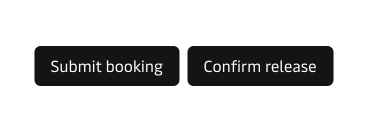
- Limit filled buttons to one per visible action group so the main action stays clear.
- If several actions are equally important, use outlined instead of giving them all filled emphasis.
- Use plain for repetitive or low-emphasis actions that should stay available without dominating the layout.
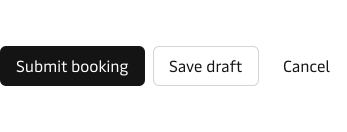
| Level | Appearance | Variant | When to use |
|---|---|---|---|
| Primary action | Primary | Filled | The single main action per screen or section, such as submit, confirm, or continue. |
| Secondary action | Neutral | Outlined | Supporting or alternative actions, such as save draft, cancel, or go back. |
| Tertiary action | Neutral | Plain | Repetitive or low-emphasis actions, such as reset, clear, or dismiss. |
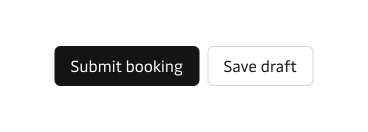
Neutral filled in modals, dialogs, and drawers
In modals, dialogs, and drawers, use the neutral filled button for the secondary action instead of neutral outlined. The container edge already frames the content, so an outlined border doubles against that edge and adds visual noise. A neutral fill removes the competing border while keeping the action clearly defined.
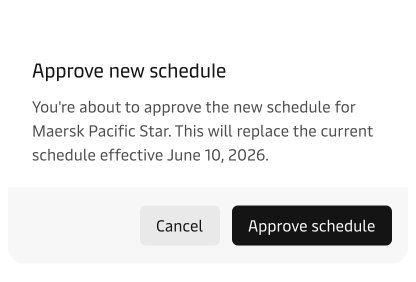
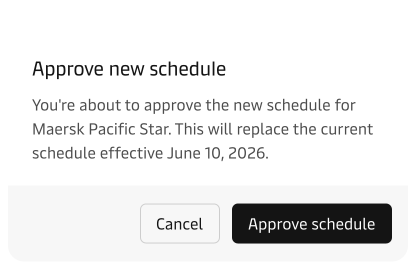
The action order is also reversed from forms. In these contained surfaces, the primary action sits on the right. A modal, dialog, or drawer presents a single, focused decision rather than a long entry flow, so the user reads top to bottom and finishes scanning at the bottom-right corner.
Putting the commit action where attention lands shortens the path from reading to confirming. In open form layouts the primary action sits first, on the left, to optimise reading and keyboard flow into the form (see Form actions).
Error filled for destructive actions
Use the error filled button for irreversible destructive actions: deleting an account, removing a vessel from a schedule, or purging shipment records. The red fill signals danger and forces the user to commit deliberately.
Pair it with a neutral secondary action (outlined or plain) so users have an obvious escape route. Only use error filled when the consequence is permanent. Reversible or routine actions do not need it.
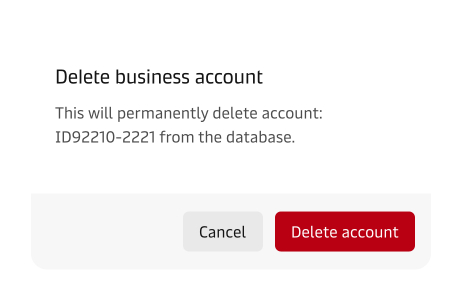
Error in outlined or plain dilutes the danger signal without reducing prominence. It creates an unclear middle ground. If an action is destructive enough to need the error colour, use the filled variant.
Secondary filled, brand hero exception
Use the secondary filled button sparingly, only in Maersk-branded hero or stage elements that need stronger brand emphasis. It is an exception for hero contexts, not a general replacement for the primary filled button.

Inverse for dark contexts
Use the inverse variant when buttons sit on dark backgrounds, dark-theme surfaces, or hero sections with dark imagery. Inverse buttons flip the colour relationship so the text and borders remain legible against the dark surface.

Use rounded shape deliberately
Do not use the rounded shape as the default button style or mix rounded and regular buttons in the same action row without a clear semantic difference. In particular, do not use rounded buttons in form footers or table action rows where regular buttons are expected. These rules apply to brands that use the default rectangular button style.


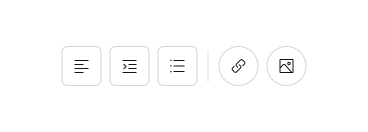
Rounded buttons work as isolated helper and navigation controls, not standard row actions. Because they are standalone controls, they typically appear alone. They do not form action hierarchies with other rounded buttons. A shipment support helper can stay visible across screens without competing with the main task action. Carousel navigation also works as rounded because the controls are standalone targets, not part of an action row.
Buttons with icons
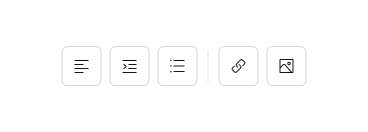
Add icons only when they clarify the action or outcome. Use a trailing icon only when it reinforces the result, and reserve icon-only buttons for universally understood actions.
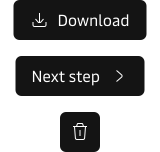
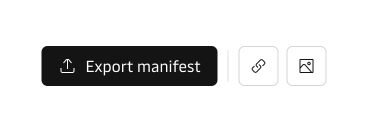
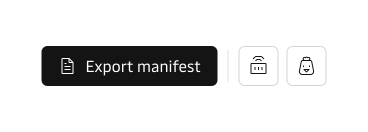
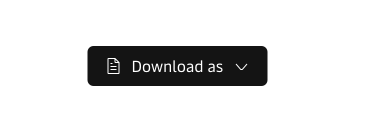
A button can use two icons when both serve a distinct purpose. Use a leading icon to identify the action and a trailing icon to signal a secondary behaviour such as opening a menu. An icon-only button with two icons works as a compact compound trigger where the combination is universally understood.

Button with a badge
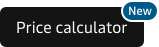
Use a badge on a button when the user needs a persistent count or status indicator tied to the action, such as pending documents or unread notifications. The badge should update dynamically and remain visible regardless of the button state.

Spacing between buttons
Use consistent spacing between buttons in an action row. Tight spacing groups related actions visually. Wider spacing separates actions that serve different purposes, such as a primary submit and a destructive reset on opposite ends of a form footer. For spacing values, see the spacing guidelines.
Choose the right fit
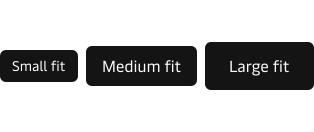
The button component supports three fit sizes: small, medium, and large. Choose the fit by the density of the surrounding layout, not by device or screen size. Medium is the default and works everywhere, including touch and mobile. Pick medium unless a dense layout genuinely needs small, or the context needs the extra presence of large. You don’t need to change the fit per device — choose a fit for the context and let the component handle rendering across screen sizes.
| Fit | Use when | Examples |
|---|---|---|
| Small | Space is tight and the surrounding controls are dense | Table rows, compact toolbars, filter bars, inline actions. |
| Medium | The default for almost everything, pointer and touch alike | Forms, dialogs, page-level actions, most desktop and mobile UI. |
| Large | The action needs extra presence | Marketing heroes, kiosk and POS screens, prominent standalone CTAs. |
Use one fit per local context and match it to the density of the controls around it. Buttons in a table toolbar should share the small fit of the inputs beside them. A form’s submit action should match its medium-fit fields. Mixing fits in the same action row creates visual imbalance and breaks the hierarchy.
You don’t need to change the fit for touch devices or smaller screens. Medium already provides a comfortable tap target on touch, so keep it as the default rather than swapping to large by hand. The one thing to avoid is small for primary touch actions. Small is built for pointer precision in dense desktop views, and its tap target is too tight for reliable touch use.
For more detail on fit sizes across the design system, see the component fit guidelines.
Full-width buttons
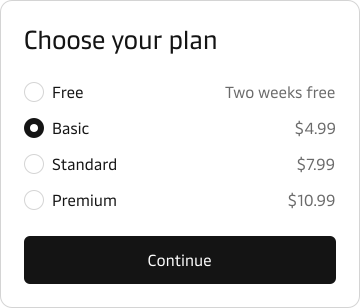
Use full-width buttons only in narrow containers or mobile layouts where the button should fill the available width. This prevents small tap targets on touch devices and gives the action visual prominence in a constrained space.
Patterns
Form actions
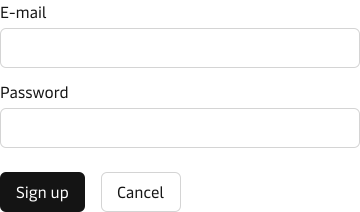
Pair a filled primary action with an outlined secondary action, align the primary action with the form content, and place the secondary action to its right so keyboard flow reaches the main action first.
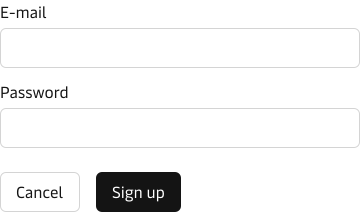
For broader guidance on form layout and button placement, see the form design guidelines.
Repetitive and low-emphasis actions
Use low-key button styles for actions users perform often and repeatedly, especially in dense interfaces like table rows or expandable content lists. Prefer icon-only or plain buttons when the action is universally understood and should stay available without competing with primary goals. Use labelled variants only when the action is specific, ambiguous, or needs extra clarity.
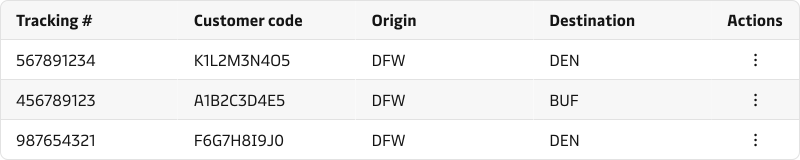
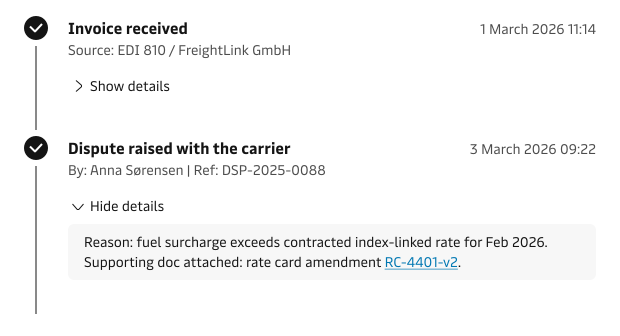
For progressive disclosure actions such as “Show details” or “Load more”, use a plain button so repetitive triggers stay low-emphasis while remaining discoverable.
Empty state actions
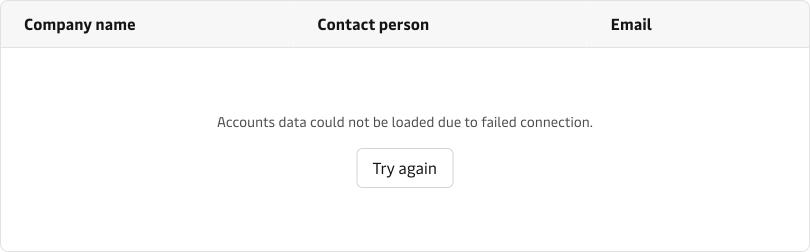
Use a single clear call-to-action button in an empty state so users understand the next step when no data is available.
Content guidance
- Write button labels in sentence case. Capitalise the first word and proper nouns only.
- Lead with an action verb and add a noun only when it removes ambiguity, for example Book a container.
- Avoid vague labels such as Submit or Confirm. Name the action instead, for example Submit booking or Confirm release.


Users rely on clear and consistent labels. See our label guidelines for broader writing guidance.
States and feedback
- Default: the button shows its variant and emphasis level.
- Hover: the background shifts slightly to confirm the button is interactive.
- Focus: focus ring is visible so the user can visually find and activate the action.
- Active: a pressed state becomes visible while the user commits the action.
- Disabled: the background is faded so it is clear that the action is not available yet.
- Loading: show that the action is processing and prevent duplicate submissions.
Disable buttons only when the action is truly unavailable and the user can fix the condition. If the action is available but input is invalid, keep the button enabled and show validation guidance instead.
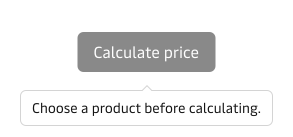
For disabled buttons, add a tooltip that explains what is unavailable, why it is unavailable, and what the user needs to do to enable it.
Use the loading state only for short waits (about 2 to 5 seconds). For longer operations, show progress in a dedicated Progress indicator or a status view instead of keeping the button in loading state.

Accessibility
- Always provide a label for icon-only buttons so assistive technologies can announce the action. For example, an icon-only delete action still needs an accessible name such as Remove container.
- Follow the label guidance in Content guidance above. Clear labels benefit everyone, especially screen reader users.
- Ensure buttons can be activated with Enter and Space when focused.
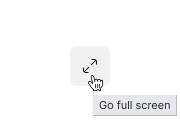
The component already handles focus-ring styling, renders an accessible label for icon-only buttons from the label property, and sets aria-busy during loading.
Related components
| Component | Use case |
|---|---|
| Link Button | When the action navigates to a URL but needs button-level visual weight |
| Link | When the interaction is purely navigational within body text |
| Split Button | When one trigger needs a primary action plus a set of alternatives |
| Menu | When multiple actions need to be consolidated behind a single entry point |
| Button Group | When related toggle or selection buttons belong together in one row |
| Badge | When the button needs a persistent count or status indicator such as pending documents or unread notifications |