MDS Assistant is an experiment.
Hi, I'm the MDS Assistant and can help you with information from our guidelines and components.

I do not provide code and development guidance. For coding assistance, please check out our experimental MCP server.

Badge

The badge draws attention to UI elements to highlight new notifications, updates or counts without overwhelming the user.

Best practice

  • Use badges sparingly to avoid “visual noise” and overwhelming the user
  • Use for new or unread items, e.g. messages or notifications
  • Use for showing a count on relevant UI elements, e.g., the number of new comments
  • The badge should be dynamic and updated in real time when possible
  • Use the same appearance (colour) across the application for the same use case

Supported components

Default badge

The default badge can contain numbers (count) or letters (label).

Count badge

By default, the badge displays numbers up to 99. If the number exceeds 99, a plus sign (+) is added at the end.
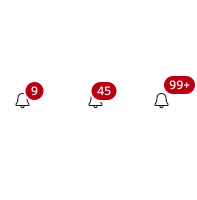
By default, the badge can display numbers up to 99. For numbers over 99, a plus is added at the end of 99.

In code, you can set a max cap on the value. For example, if you set the max cap to 10, then all numbers over 10 will be displayed as 10+.

If the max is set to 10, then numbers above 10 will be displayed as 10+

Label badge

The badge can also contain label text that can be used for use cases where you want to announce something more specific about the parent UI element. For example, to highlight that something is in “beta” or “new”.
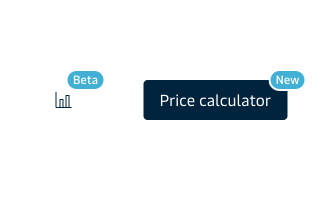
The badge can also contain a label that can be used to draw attention to the parent UI element, e.g. a new feature.

Dot badge

The badge comes in a dot variant, which is used for more subtle notifications, e.g. an online/offline status or if “something is new” without an exact count.
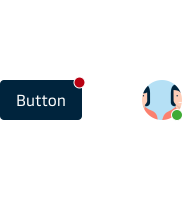
The dot badge can be used to communicate online/offline status or that something new has happened without an exact count.

Appearances

The badge has 4 appearances - Error, Info, Success and Warning. Choose a colour for the badge that works well for the use case and draws the right amount of attention. Ensure that there is enough contrast between the parent UI element and the badge.
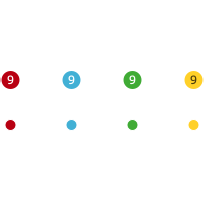
The badge comes in 4 appearances - Error (red), Info (blue), Success (green) and Warning (yellow).

Fit

The badge comes in 2 different fits (sizes): small and medium. Which fit to choose depends on the parent UI element.

As a general rule, you should:

  • Use the small badge on small UI parent elements.
  • Use the medium badge on medium and large UI parent elements.
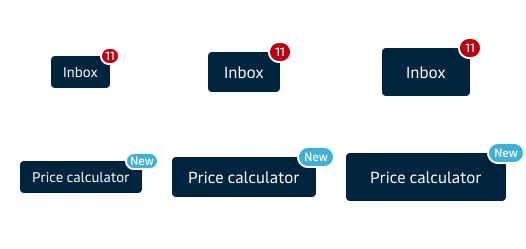
Use a small badge on small component fit and a medium badge on medium and large component fit.

Pinned or inline

The badge can be “pinned” on the parent UI element or placed “inline”, e.g. in a menu list item or a sidebar navigation item. 
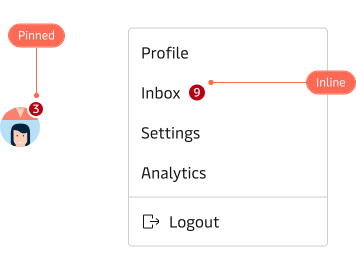
The badge can either be pinned on the parent UI element or placed inline.

Positioning

If the badge is “pinned”, then you have the option to position the badge on the top right corner or the bottom right corner of the parent UI element. 
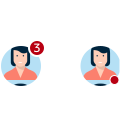
The badge can be placed top-right or bottom-right.

If placed “inline” then you can position the badge to the right or left in the parent UI element.
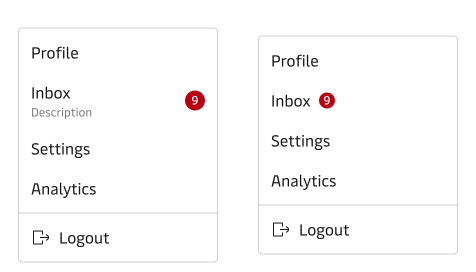
Inline badges can be positioned right or left.

Distance

If the badge is “pinned”, then you can use the “distance” option/property in Figma and Code to adjust the positioning between small, medium and large distances. Always make sure that the badge does not cover crucial information.
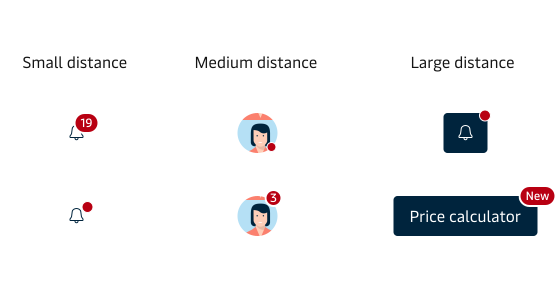
Use the distance option/property in Figma and in code to position the badge correctly.

Here are a number of examples of what not to do.
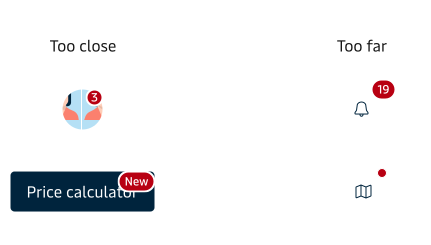
The badge should never cover crucial information and should also not be placed too far from its parent UI component.