Pagination
Best practice
- Only split content/data across pages when there are more than 25 items.
- Use Button pagination for simple navigation between content pages, e.g. articles and search results.
- Use Select pagination for smaller data tables, e.g. 200 rows.
- Use Input pagination for large datasets, e.g. 2000 rows.
- In most cases, the pagination is placed directly below the content it controls.
- In some cases, it might also be valuable to place the pagination above the content it controls.
Usage
The pagination component comes in 3 variants – Button, Select and Input:
- Use Button pagination for navigating between content pages, such as articles and Search Results.
- Use Select pagination for smaller data tables, e.g. 200 rows.
- Use Input pagination for large data tables, e.g. 2000 rows.
In some cases, the pagination component is not the most appropriate way of navigating large quantities of data. Sometimes simpler or more advanced controls can be applied depending on the user’s needs and the technical constraints. Read more about the pagination alternatives at the bottom of the page.
Additional features
Each pagination variant (button, select and input) comes with the possibility to show and hide additional features: pagesize, page status and first and last page buttons.

Anatomy of the additional features that come with each pagination variant.
- Page size: allows the user to select the number of items per page.
- Page status: show what range is currently displayed.
- First and Last page buttons allow the user to navigate to the start and end.
Button pagination
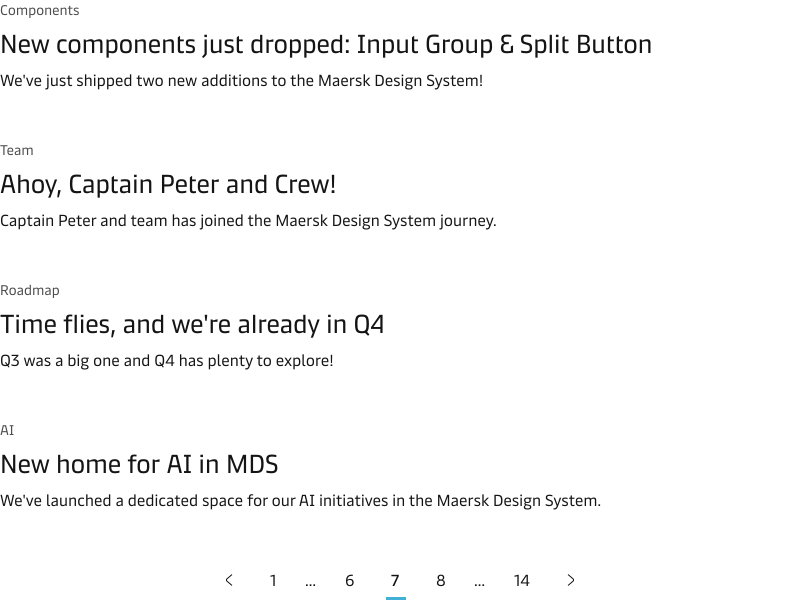
Use the Button pagination for simple navigation between content pages e.g. article page or search results. The Button Pagination is good for cases where the user does not need to find specific information, but rather just browse items or read in-depth articles.
Truncation
The Button pagination uses truncation by default to keep navigation simple and efficient. This approach ensures users can always navigate to the first and last page as well as view the total number of pages.

Truncation can be disabled in cases where it is unnecessary — such as in search results, where the total page count often adds little value.

Compact pagination
In some cases, you might want to provide the user with a lighter way to navigate through content e.g. if you have a slideshow like the example below. In such cases, you can configure the pagination to only show the “previous” and “next” arrows.

Select pagination
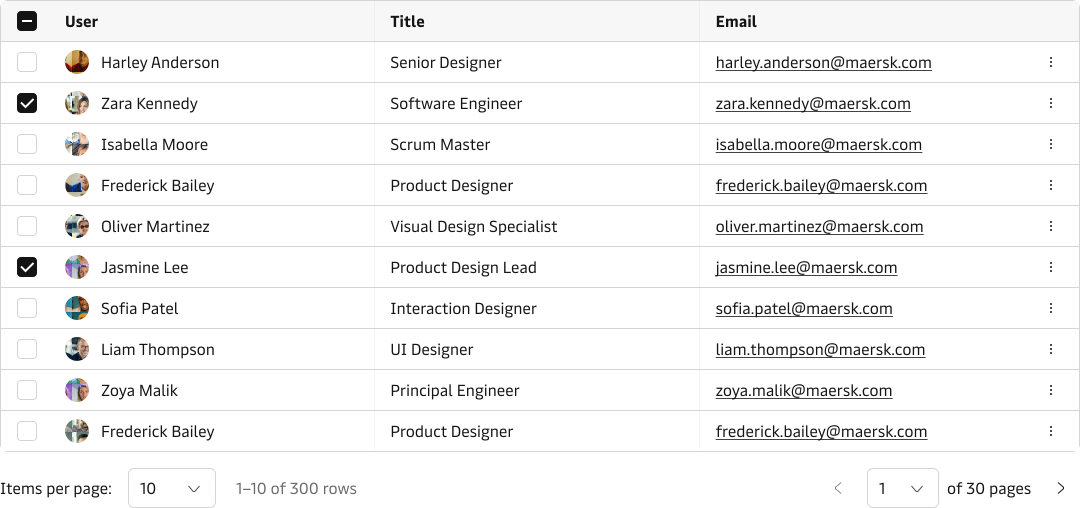
Select pagination works well in smaller tables, e.g. 200 rows. For large data tables use the Input Pagination, since it will provide an easier way for the user to jump to a specific page within in the dataset.
Avoid using the Select pagination in large datasets. The larger the total number of pages becomes the more difficult it also becomes for the user to select the correct page in the select. In such cases use the Input Pagination.
Input pagination
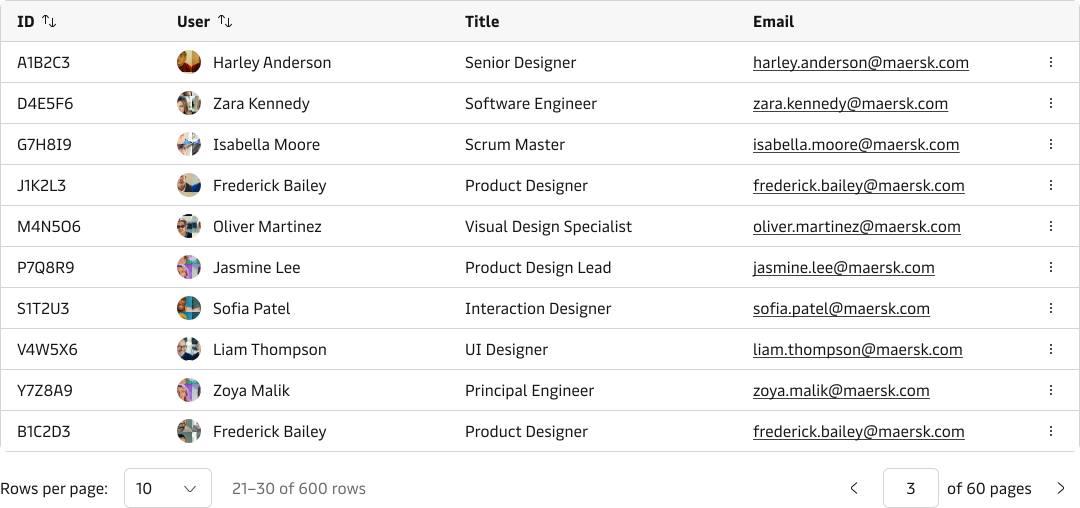
Input pagination is similar to the Select Pagination, but offers a more effective way of jumping to a specific page within a large dataset, e.g. 2000 rows.
Pagination alternatives
Filter, sort & search
If the users know what they are looking for, it may be worth saving them the hassle of browsing through multiple pages by allowing them to search, filter and sort through the data. You can read more in our Search, Filter and Sort Guidelines.
Infinite scroll
The page content is dynamically added to the bottom of the page as the user scrolls to avoid overloading the server. However, this approach is generally discouraged due to the lack of user control and the inability to reach the bottom of the page.
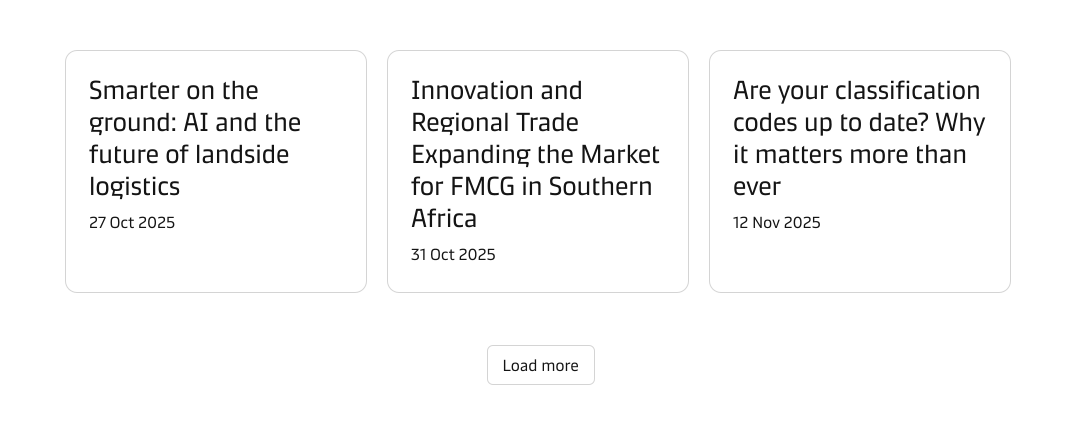
Load more button
Allow the users to load more results on demand without having to reload the entire page or dealing with a pagination control (which has been shown to discourage users from exploring past the first page). This approach is encouraged when users are browsing through items (explorative) rather than looking for a specific/known item (goal-oriented).