Segmented Control
Best practice
Do:
- Use the Segmented Control to select and segment the content displayed.
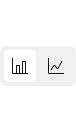
- Use the Segmented Control for switching between binary views e.g. showing a bar or a line chart.
- Show the outcome immediately after selection e.g. changing from card view to list view.
- Limit segments to 4-5 options. Limiting ensures all segments are clearly visible across different screen sizes.
- Keep labels short and with clear meaning.
Do not:
- Do not use the Segmented Control to navigate content within the same page context. Use the Tabs component instead.
- Do not use the Segmented Control for binary actions e.g. switching a feature on and off. The Switch component is ideal for this.
- Do not use the Segmented Control to collect user input in forms. Please check the Selection components guideline.
Usage
Segmented Controls are ideal for changing the view on content within a single context e.g. changing grid view to list view.
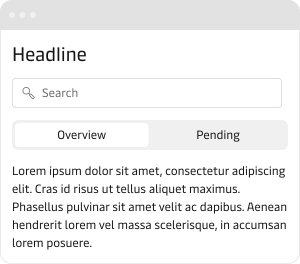
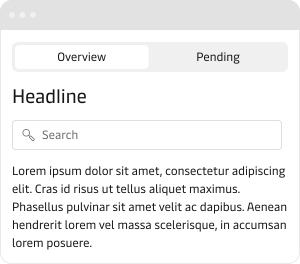
The Segmented Control is helpful in creating layouts with a cleaner interface and information hierarchy and can work well in combination with the Tabs component.
Use the Segmented Control to narrow down what is visible in order to make content more digestible.
Do not use the Segmented Control or actions or to navigate to different pages. In this instance, consider using the Button, and Button Group for actions or Tabs if you need users to navigate to different content.
Filter available content
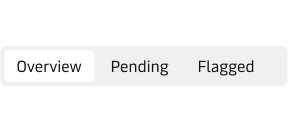
The Segmented Control is ideal for switching what content is visible in a list or a table. It can act as a quick filter to help users digest the available content faster.
Control view modes
The Segmented Control can be used to enable users to look at the same content in different presentation modes. It is a useful way of tailoring information for different types of users and mental models.
Small viewport
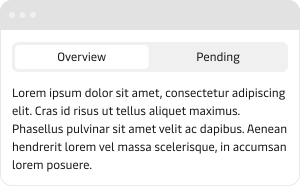
When using the Segmented Control to segment content in small viewports like mobile devices or sidebars, use full width for the best alignment with the related content and surrounding UI elements.
Placement
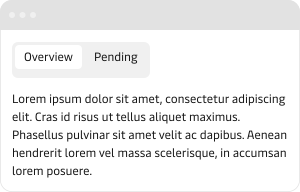
Always place a Segmented Control in close proximity to the content area that will be impacted by it. This creates a clear hierarchy.