Menu
The Menu can be used for command and navigational types of menus. It enables users to initiate an action or takes them to a new location.
Visit the List component for more information on how to tailor the content of the Menu component.
Best practice
- The content of the menus should be easy to scan and navigate.
- Use trigger elements like icons, buttons, text fields, and right mouse clicks to show a menu.
- The trigger should have affordance for the user, especially for touch gestures and right mouse clicks.
- Display the menu in close proximity to the triggering UI element.
- Use proper elevation (z-index) so that other UI elements do not cover the active menu.
- When menus are displayed they should not overflow the viewport.
- Utilize scrolling within the menu when the content requires it.
- If initiated action in a menu fails to complete, it should be clearly communicated to the user. Notification component is suitable for that task.
Dividers
You can add horisontal dividers to your menu to group the list items into different categories.
Do
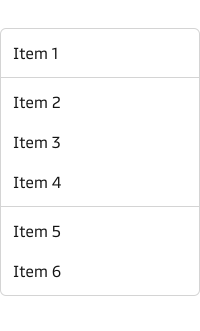
Section dividers are used to divide categories of menu list items.
Don't
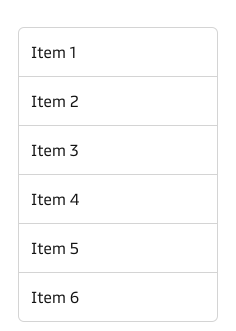
Don't use section dividers as list item dividers.
Disable menu items
You can disable the menu list items that are not avaliable, but always make sure that it makes sense in that particular context, so the user do not get confused.
Do
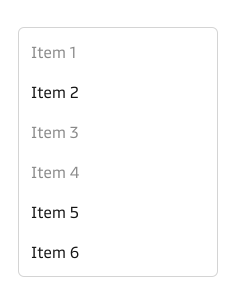
Disable menu items when it's logical for the user why they are disabled.
Don't
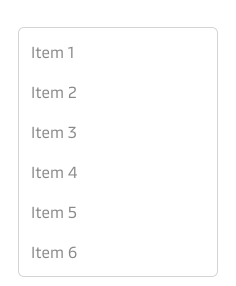
Don't disable all menu items in a menu list.