Multi Select
Best practice
- Use Multi Select to allow for the selection of multiple options from medium to long lists.
- Use a single word or a concise sentence as options
- The Multi Select and the options popover should have the same width.
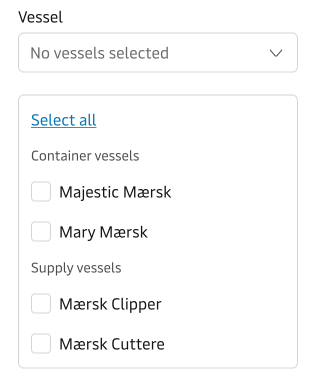
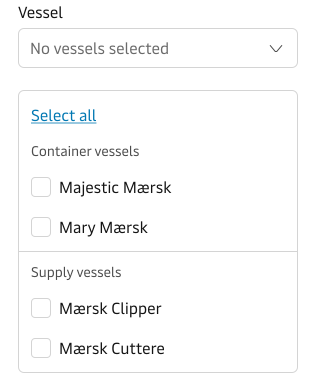
- When grouping options, ensure the groups are logical and helpful to the user.
- The label should describe what the user is selecting. Check the Label Guidelines.
- Use the help text to provide additional context and explanation.
- Use Checkboxes if there are six options or fewer, unless it negatively impacts the UI layout.
- If the list has more than 10-15 options, then activate the search functionality.
- Use the Typeahead Multi Select instead, if the list of options is very long.
Search
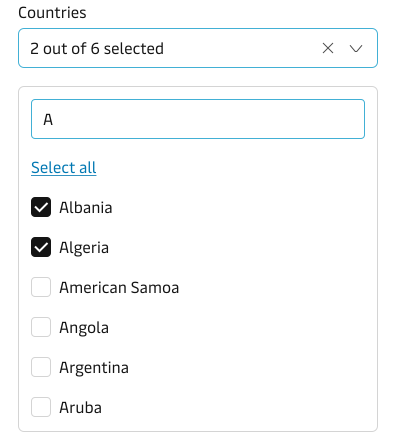
In cases where the list of options is longer than 10-15, it is recommended to activate the search functionality in the drop-down list. The longer the list the more difficult it becomes for the user to scan the options, but already when the list is between 10-15 options, the ability scan slows down. In such cases, a search can be a great way to speed up the process of finding the right option(s).
Both components allow users to search and select multiple options from a list, but they serve different use cases and user behaviours. Read about the differences in the Selection Components Guidelines.
Grouping options
Clearing a selection
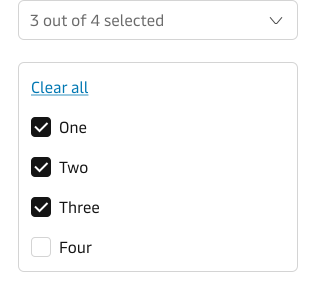
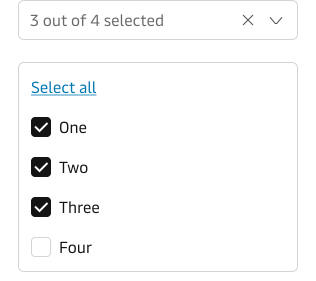
The Multi Select offers two ways of clearing an already-made selection. The default way displays an additional “Clear all” option on top of the list that removes the selection and returns the field to its default state.
Multi Select also supports an icon action in the input field. It allows users to interact with it by clicking, touching, or using the backspace key on the keyboard to remove an existing selection. It must be enabled intentionally and used for short forms or single multi-select fields.
Label
By default, the component has a top-positioned label. It is possible to change the position of the label to be left-positioned. We recommend that you use the top-positioned labels wherever possible, especially in forms. You can read more about why we recommend top-positioned labels in our Form Guidelines.
For information on how to write good and consistent labels - see our Label Guidelines.
Hint text & error state
Please see the Input component for details on hint text and error state.
Vanity variant
The component supports the “vanity” style variant.
Please read more about this variant in our Form Guidelines.