Typeahead
Best practice
- Follow the best practice from the Input component.
- Use the label and help text to guide people on how to find the relevant results.
- Use typeahead when you have a long list of selectable values. (e.g. finding a location) For short and simpler lists consider using Select and Multi Select components.
- Present recent search queries in zero states before the user has started typing in the query.
- Always provide a way for users to clear the selected option(s).
- Whenever possible account for common misspellings and typos to assist further the users with finding the relevant results.
- Whenever possible use usage data to help rank relevant results for the user in the future.
- We recommend reading the Forms and Label Guidelines.
Both components allow users to search and select an option from a list, but they serve different use cases and user behaviour. Read about the difference in the Selection Components Guidelines.
Usage
Typeahead is best used when input accuracy and standardisation are important, and you want to assist people in finding specific information from a large set of data. The autosuggestions assist the input process and help people narrow down the available information until a final selection can be made.
Supplementary information and grouping
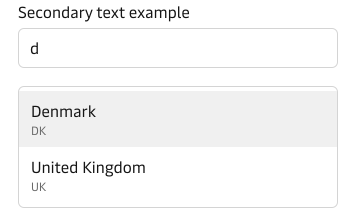
Use secondary text under the main value in the options list to provide further context for people. It is helpful when the main displayed values might be called the same and you want to avoid having very long descriptions for each value.
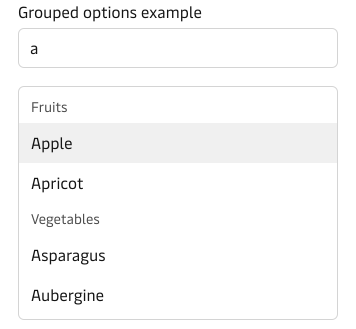
Grouping the available options in a logical way can provide additional context when users are browsing the dropdown list if only a partial query is entered.
Label
By default, the component has a top-positioned label. It is possible to change the position of the label to be left-positioned. We recommend that you use the top-positioned labels wherever possible, especially in forms. You can read more about why we recommend top-positioned labels in our form guidelines.
For information on how to write good and consistent labels - see our Label Guidelines.
Hint text & error state
Please see the Input component for details on hint text and error state.
Vanity variant
The component supports the “vanity” style variant.
Please read more about this variant on our form guidelines page.