Toolbar
Best practice
- Keep the toolbar concise and context relevant.
- Group related items logically together and separate with dividers, if placed close together.
- Make sure that the purpose of each item/action in the toolbar is easy to understand.
- Use clear and consistent iconography.
- Limit the number of items to prevent clutter.
Usage
Use the toolbar to provide the user with easy access to frequently used actions that support main tasks in the application. A toolbar can be used in many different contexts, and the examples on this page are not exhaustive.
Table bulk actions
A very common UI pattern is to use the toolbar to provide the user with a way to perform the same task for multiple rows in a table, e.g. delete, move, export, etc. Such a toolbar is called a bulk action toolbar. Read more about the Bulk Action Toolbar that is a part of the MDS table.
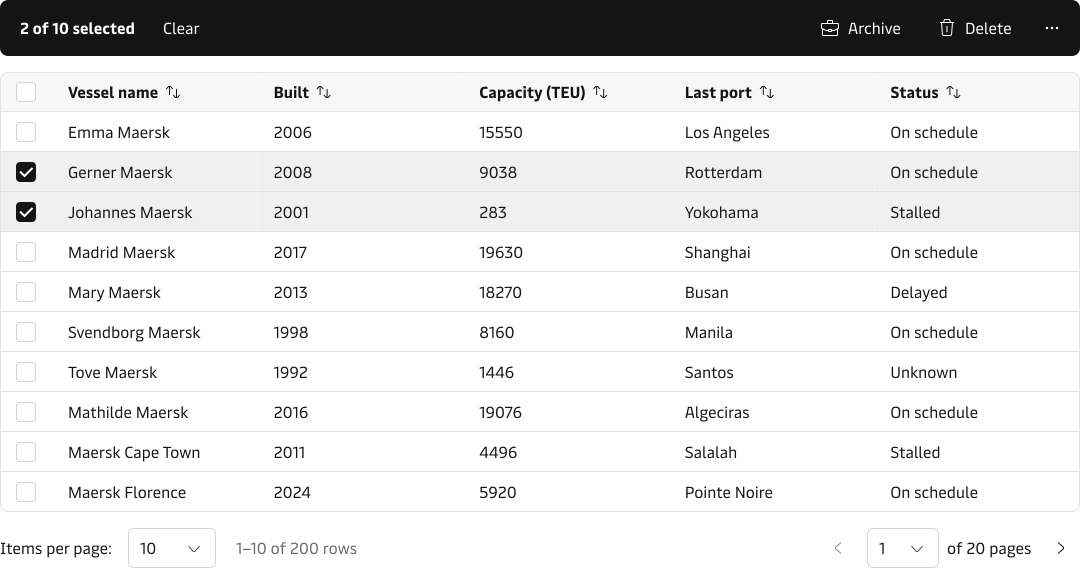
Inverse appearance
The Bulk Actions Toolbar is using the inverse appearance to draw the needed attention to the component. It signals clearly to the user that specific actions can be performed to the selected row(s).
We don’t recommend using the inverse appearance for other toolbar use cases. In other words, the inverse appearance is reserved for the Bulk Ations Toolbar.
Search
The toolbar can be used for arranging the different filter and sorting options you need in order to manage a list of data, e.g. search results, task lists, etc.

Text editor
The toolbar can be used as a part of a text editor to provide quick access to commands and formatting options e.g. font size and weights, text alignment etc.

Grouping
You can place items at the start, center and end of the toolbar using the slot option. This is particularly useful if you want to group the toolbar items to support different use cases.


Dividers
In addition to grouping items using the start, center and end slots, you can also visually separate the groups by adding a divider in between. Adding a divider between the groups helps the user understand the relationship between the different items if they are placed close together.
