Calendar
Best practice
- Use a calendar when people need to understand a date in relation to nearby days or weeks, instead of simply entering a known date.
- Keep the selectable date range practical for the context (e.g. 6–24 months for booking).
- Visually mark important days (e.g. public holidays, departure dates, or capacity limits) so users can recognise patterns at a glance instead of checking each date individually.
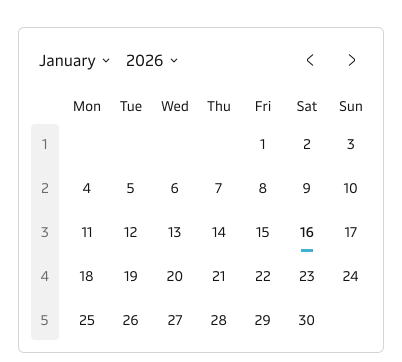
- Show week numbers only in regions, countries, and contexts where users expect them (e.g. European planning teams that refer to “week 14”).
This component is used in Input date component. It can be used as the basis for custom date and time selection components and patterns.
Usage
Use the Calendar component to let users see a whole month at a time, compare days and weeks, and quickly understand which dates are available for their task at hand.
It is suitable for different logistics use cases where people need to understand patterns over time, such as pickup availability, cutoff dates, vessel schedules or free‑storage periods.
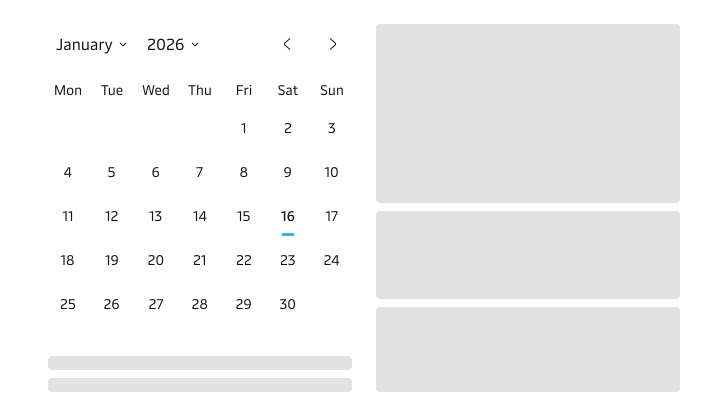
When users navigate the calendar month to month, its height changes based on the number of weeks in each month. Make sure the UI has enough vertical space to prevent the interface from shifting during month changes.
Selectable dates
The calendar component allows restricting what dates users can select by setting a minimum and/or maximum selectable date. This is useful when the context requires limiting the date range to only available dates, therefore preventing impossible selection. Limiting the range reduces scrolling and speeds up decisions. For example, showing booking dates from today onward for the next 6 months.
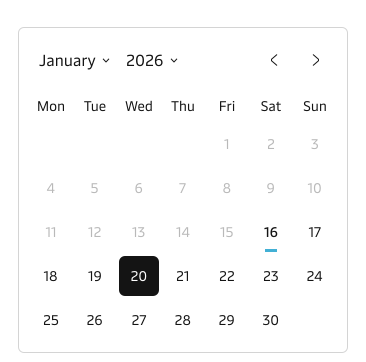
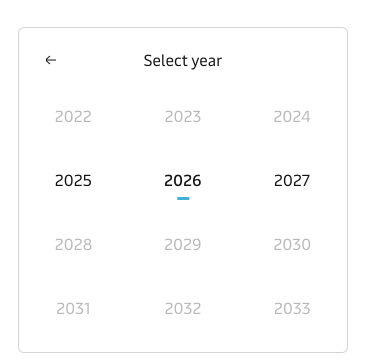
Setting a yearcap and min/max properties influence the available selectable dates and also what years are disabled in the year picker interface.
Customising day styles
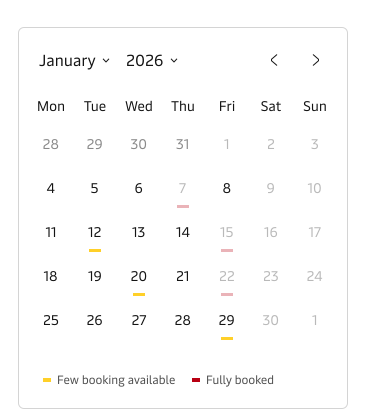
Individual days or ranges can use customised styles or be disabled to show availability, status, or special conditions. Use visual styling consistently and explain it in the calendar footer as a legend so the visual codes are self-explanatory and accessible to new users.
This makes business rules visible up front, so users understand what is possible before they act, instead of discovering problems only after submitting a form.
Week numbers
The calendar can optionally display week numbers in the leftmost column. Week numbers are mainly used in Europe and parts of Asia, following the ISO‑8601 standard. They are not widely used in the U.S., Canada, Australia, or New Zealand.
Use when:
- The product serves regions where week‑based planning is standard.
- Users coordinate across multiple tools or documents that reference week numbers (spreadsheets, transport plans, contracts).
Avoid when:
- The audience is global and not familiar with them.
- Week numbers would compete visually with other visual signals.