Split Button
Best practice
- Ensure the main action is the most commonly used action.
- The actions in the menu should be secondary but related to the main action.
- Both the main action and the menu items should have concise and descriptive labels.
- Limit the number of menu items - ideally no more than 4-5.
- Use the same split button appearance across the product for the same actions.
Usage
A split button helps streamline workflows by offering quick access to the most common action while still providing alternatives.
Use the split button when:
- There is a clear main action, but users sometimes need other related actions.
- You want to reduce clutter by grouping related actions.
- You want to guide users toward a preferred action while still offering flexibility.
Don’t use split button:
- For actions that are equally important.
- If the menu has too many options.
Labels
All split buttons should have Labels using English capitalization where we capitalize the first word and also capitalize proper nouns. We do not use ALL CAPS. You can read more about how to write good labels in our Label Guidelines.


Icons
A split button can contain an icon. By default, the icon is displayed before the label but can be configured to be placed after the label. It is also possible to have an icon-only split button.


Loading
Like the normal Button the split button has a loading state that should be used for a short indeterminate wait time between 2-5 seconds. The loading state reassures the user that the action is being processed. The loading state also prevents the user from activating or sending something more than one time and thereby reduces mistakes.

Menu
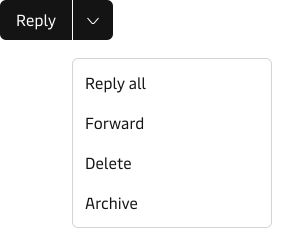
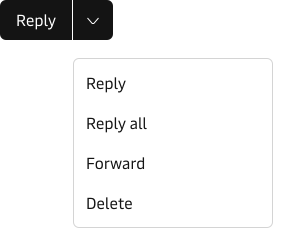
The menu list should only contain actions that are related to the main action and should not contain too many actions. Don’t repeat the main action in the menu list.
Variants and appearances
Like the normal button, the split button comes in three variants - filled, outlined and plain. Each variant has the following appearances: primary, secondary, neutral, inverse and error.
For more information on button variants and appearances and how to use them, please read our Button Documentation.
Placement
The split button can be placed in many difference areas of the UI and be use for many different purposes. For example, you can use the plain split button next to other plain buttons to create a text editing toolbar.

Accessibility
The split button supports users with assistive technology in both interacting with and understanding the component.
The following describes how to navigate the split button using a keyboard:
- Navigate to the component using the TAB-key.
- Navigate from the main action to the menu using TAB-key.
- Open the menu by pressing ENTER or SPACE.
- Navigate into the menu list using the TAB-key.
- Navigate up and down the list using the ARROW-DOWN and ARROW-UP.
- Close the menu by pressing ESCAPE.