Timeline
Best practice
- Use the timeline to display a history of events related to a single entity, such as a shipment, invoice, or document.
- Each event should have a clear, specific label that communicates what happened - avoid generic labels like “Updated” or “Step 1”.
- Use sublabels to provide attribution: who performed the action, which system triggered it, or which reference identifier is associated.
- In an operational context, it is recommended to include time alongside the date. Date-only timestamps are insufficient when events may occur hours apart.
Usage
The timeline is designed for operational contexts in which users must follow a sequential process over time. Unlike the Step Indicator, which guides users through a fixed set of steps, the timeline presents a record of events that have already occurred or are expected to occur. The user is reading, not driving the process.
A timeline can contain a variable number of events and supports a 2-layer hierarchy (parent and child events) for cases where a milestone contains sub-steps.
When to use
- To show the progression of a shipment, booking, or container through operational milestones.
- To display the lifecycle of a document: drafting, review, amendments, approval, and release.
- To track invoice and payment workflows: receipt, matching, disputes, resolution, and settlement.
- To provide audit trails showing who changed what and when.
- To make exception or contingency handling visible — where a process deviated and what actions were taken.
When not to use
| Scenario | Use |
|---|---|
| Guiding a user through a fixed linear process that they control (3–6 steps) | Step Indicator |
| Showing measurable progress on a known-duration task | Progress Indicator |
| Comparing timelines for shipments side by side. | Data table with status columns |
Use cases
Track and trace
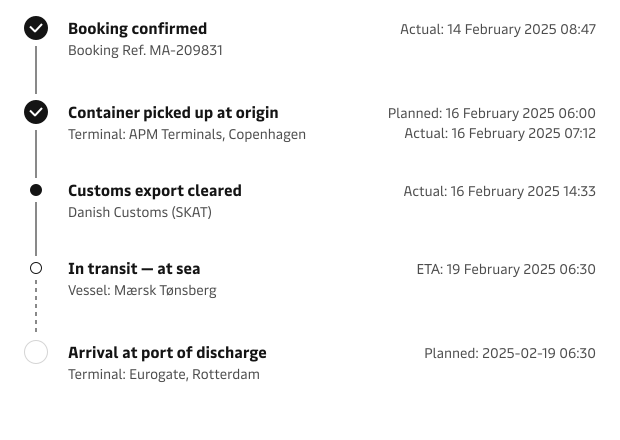
A common use case. Users follow a shipment through booking, pickup, customs, transit, and delivery.
- A mix of completed, current, and pending events is visible simultaneously.
- Planned vs. actual timestamps are critical - users scan for deviations.
- Sublabels carry reference identifiers (booking refs, vessel names, terminal codes) that users need for cross-referencing.
- Descriptions include operational details: container IDs, seal numbers, temperature readings, and reasons for delays.
Document lifecycle tracking
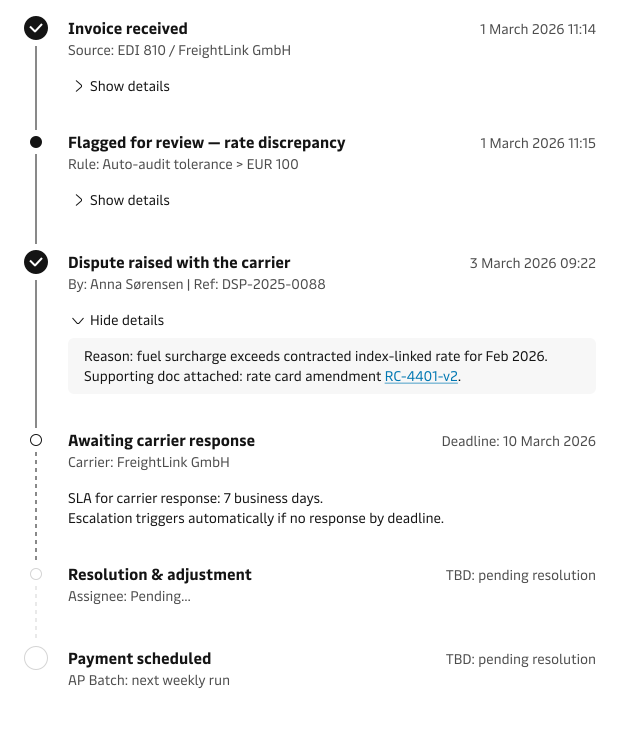
Another common use case is document lifecycle tracking. For example, tracing an invoice or other documentation through matching, review, dispute, and payment events.
- Events involve handoffs between systems (TMS, ERP) and people (AP specialist, carrier contact).
- Sublabels identify the actor or system at each step — important for accountability.
- Descriptions contain financial specifics: amounts, percentages, and contract references.
- Error state is common — rate mismatches, missing documentation,
Activity log
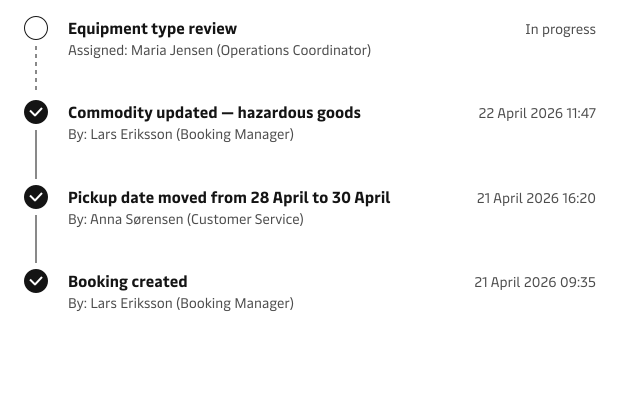
Unlike the track-and-trace use case, the activity log does not show pending future steps. It displays only what has already happened, with the most recent event at the top.
This pattern is suited to contexts where users need to review recent activity quickly, such as checking who last modified a booking, when a document status changed, or what actions were taken.
- Events are ordered most recent first - the opposite of the default chronological timeline.
- Only completed and current states are used. Pending steps are not shown.
- Sublabels are especially important here for attribution - users are often looking to answer “who did this?”.
- Timestamps benefit from relative formatting (“2 hours ago”) for recent events, switching to absolute dates for older entries, following the date and time guidelines.
States
Timeline events support three states. A single timeline typically contains a mix of completed, one current, and multiple pending events.
| State | Visual indicator | Meaning |
|---|---|---|
| Completed | Filled checkmark icon, solid connector line | The event has occurred and is confirmed. |
| Current | Highlighted icon or pulsing indicator, solid line above / dashed below | The active step in the process. Only one current event per timeline. |
| Pending | Empty circle icon, dashed connector line | Expected future event, not yet started. |
In cases where you need to show errors or mismatches, you can use the badge component to increase prominence to a particular event in the timeline.

Timestamps
Follow the Date and time content guidelines for all timestamp formatting and for how we display dates and times in the timeline. We use British date format and the 24-hour clock to avoid ambiguity.
Progressive disclosure
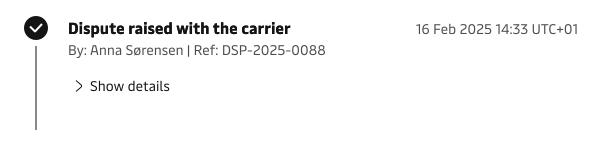
Descriptions should be collapsed by default to avoid increasing the cognitive overload. Users expand individual events using a “Show details” / “Hide details” toggle.
An alternative way of disclosing more complex information can be clicking an event headline, which can open a drawer or a new browser tab to show more details about the specific event.
This keeps the timeline scannable while preserving access to specifics like reference numbers, amounts, and deviation explanations.
Custom icons
In cases where custom icons are needed, the whole timeline should use custom icons, and they should not be mixed with the default steps to prevent layout and positioning issues.
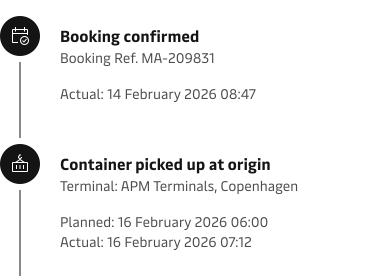
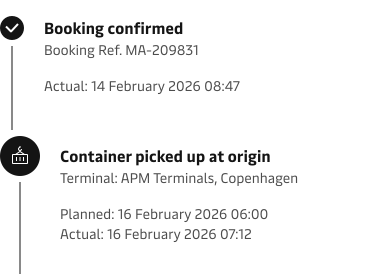
Content
Timeline content should be well organised in repeatable pattern so that users have easier time scanning the content and finding the information they need.
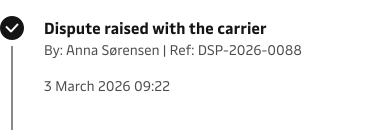
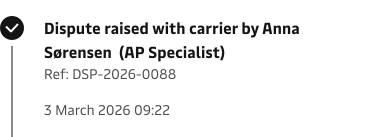
Labels
- Keep labels under approximately 60 characters where possible.
- When a label exceeds the available width, it will wrap to a second line by default.
- Our truncation guidelines advise against truncating titles and labels.
Sublabels
- Keep sublabels under approximately 80 characters.
- When combining an actor and a reference, use a clear separator. e.g. By: Anna Sørensen | Ref: DSP-2025-0088
- Allow sublabels to wrap when needed. If the sublabel is very long, consider moving secondary details into the description.
Descriptions
Descriptions are naturally multi-line and do not need overflow handling. Keep content concise (1–3 sentences) and link out for additional detail.
Responsiveness
The timeline is designed for a vertical layouts and handles resizing of the container by stacking the content into a single column when reaching the smallest breakpoints.
Full page
Standard layout. Labels, sublabels, and timestamps display at full width. Planned and actual timestamps can sit on the right side to create more visual balance and content distribution.
Side panel and drawer
Narrower container. Expect labels and sublabels to wrap. Timestamps will stack vertically (planned on one line, actual below) rather than sit alongside the labels.
Use abbreviated date format (16 Feb 2025 14:33) when the full format does not fit comfortably.
If progressive disclosure uses a drawer-within-drawer pattern, ensure focus management does not conflict — consider linking to a detail page instead of nesting drawers.
Mobile
The vertical layout is preserved and works well on narrow screens, similar to the side panel.